Not everything in your inbox is email. With Drag, you manage tasks and email side by side on the same boards, so your to-dos live where your work already is. This guide shows how.
Available on: Chrome extension · Web app · Desktop app
Set up task management
Create a board and columns
Create a board for your work and invite your team. An empty board is a good start for pure task work; see board types. Rename the columns to a flow like To do, Doing, Review, Done.
Organize and automate
- Use shared tags and colors for project or priority, and filter the board.
- Use automation rules to move, tag, or assign cards automatically.
Operate task management
Create tasks and break them down
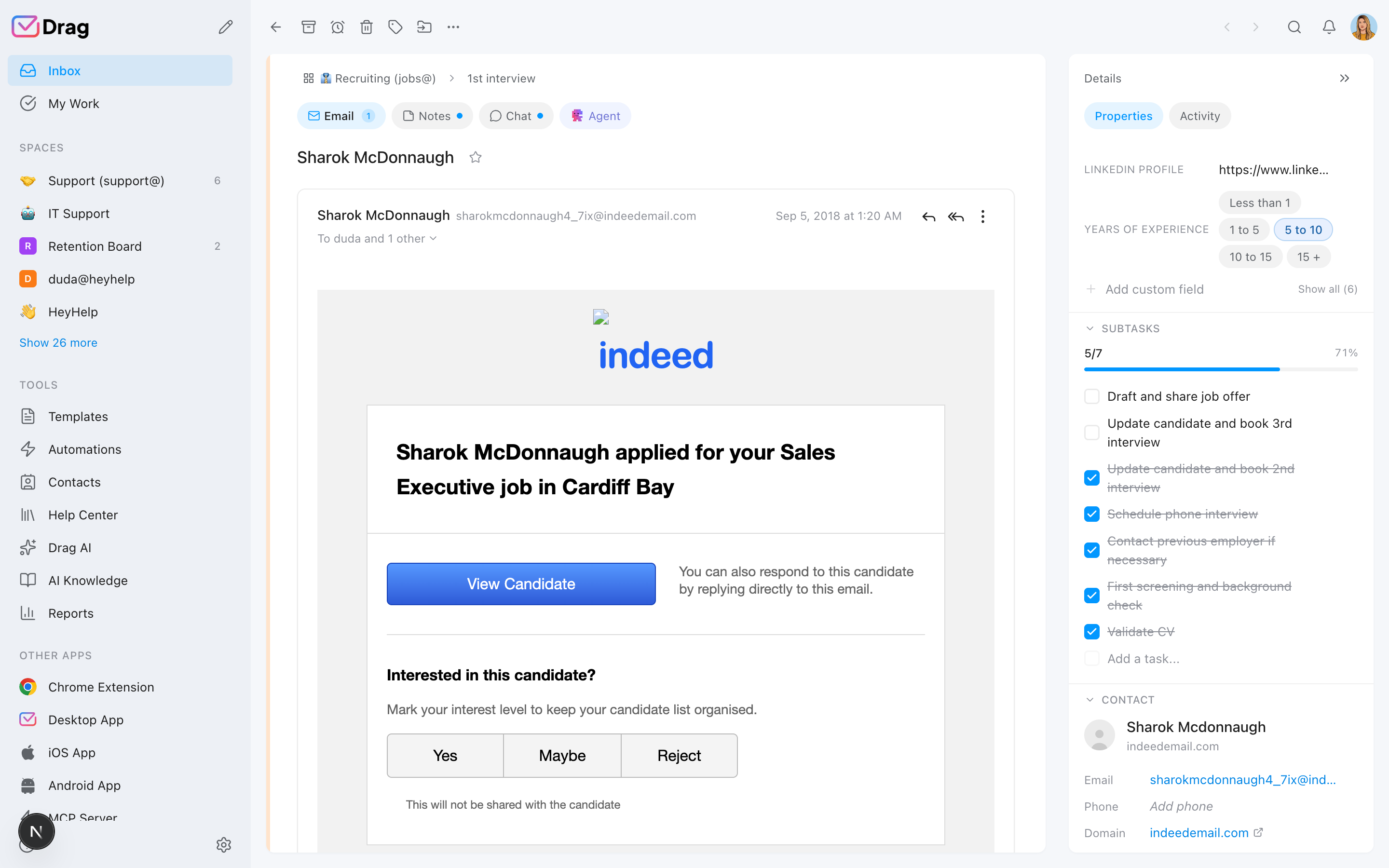
Create task cards directly on the board, then split each into tasks and subtasks so nothing is missed.
Assign, add context, and set due dates
Assign each task an owner, keep notes and internal chat on the card, and add due dates, which can sync to Google Calendar.
Track state and triage email tasks
Set a card's status (Open, Pending, or Closed) to track where a task stands, beyond its column. For work that arrives as email on the board, Drag AI (included on Plus and Pro, or with bought AI credits on Starter) can help: AI Tagging by Intent flags what needs action, and AI Drafts suggest replies to review and send.
See everything assigned to you
Use My Work to see the tasks assigned to you across every board in one place.
Using Varley for task management
- See your day. “What's assigned to me across my boards?”
- Add tasks as you read. “Create a task on this card to send the contract”
- Set deadlines. “Set the due date on this card to Friday”
- Clear finished work. “Archive every card in Done”
New to Varley? See What is Varley? and What can I ask Varley?.
Pro tips
- Share tasks across teams. Drag a card into another team's shared board when they need to pick it up.