My Work is your personal queue in the Drag web app. It gathers the cards that need your attention from across every board into one place, so you can start your day without hopping between boards.
Available on: Web app
My Work is a web-app feature. It does not appear in the Chrome extension. If you work in Gmail, use assignments and mentions to track what is yours.
Opening My Work
In the web app sidebar, click My Work. Drag pulls in the relevant cards from all the boards you have access to.
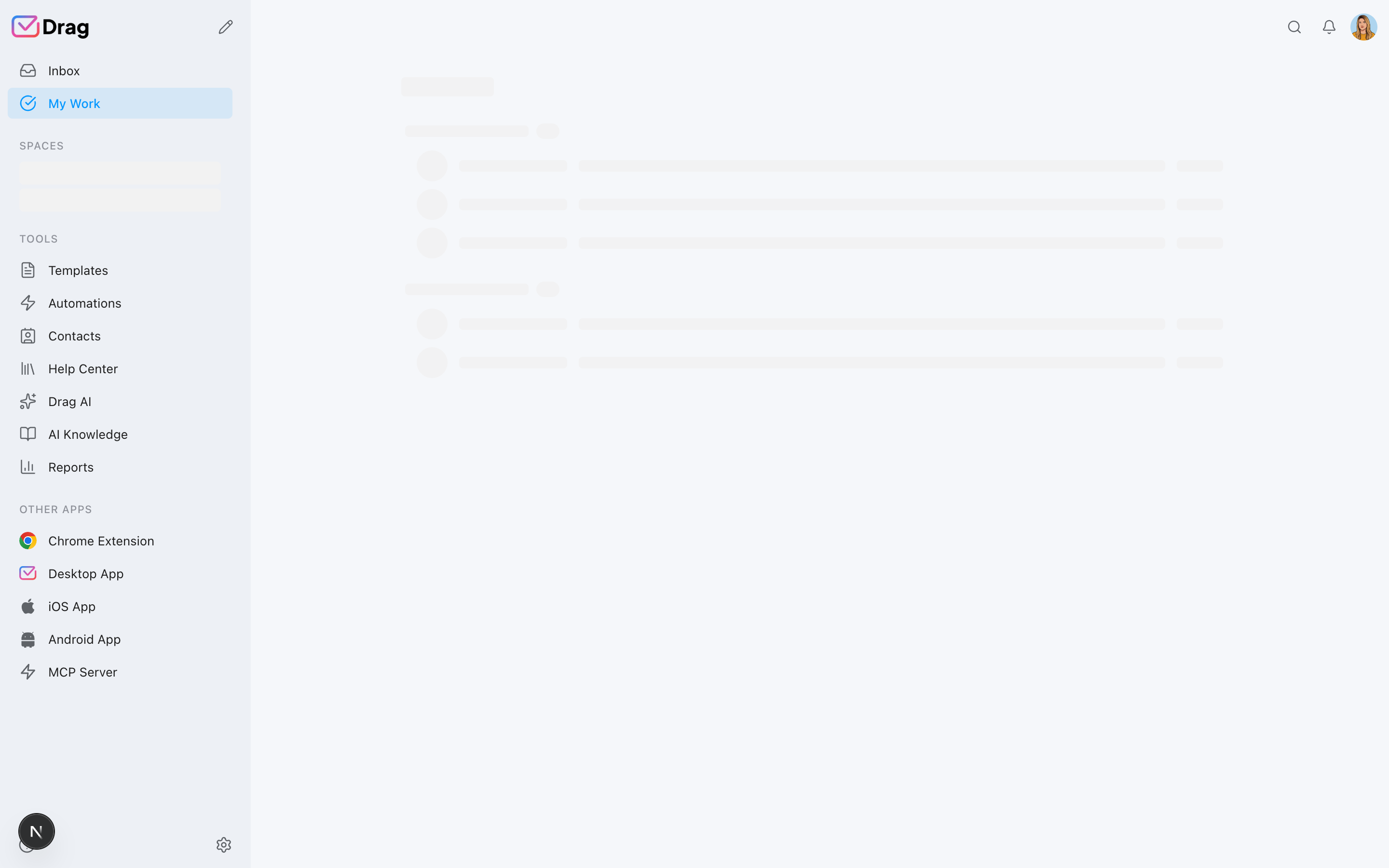
How My Work is organized
My Work groups your cards into sections:
- Needs your reply: conversations waiting on a response from you.
- Due soon and overdue: cards with a due date approaching or already past.
- Assigned to you: cards currently assigned to you across your boards.
- Dismissed: items you have set aside from the list.
When there is nothing left to act on, My Work shows "You're all caught up." You can collapse a section to focus, and Drag remembers which sections you collapsed.
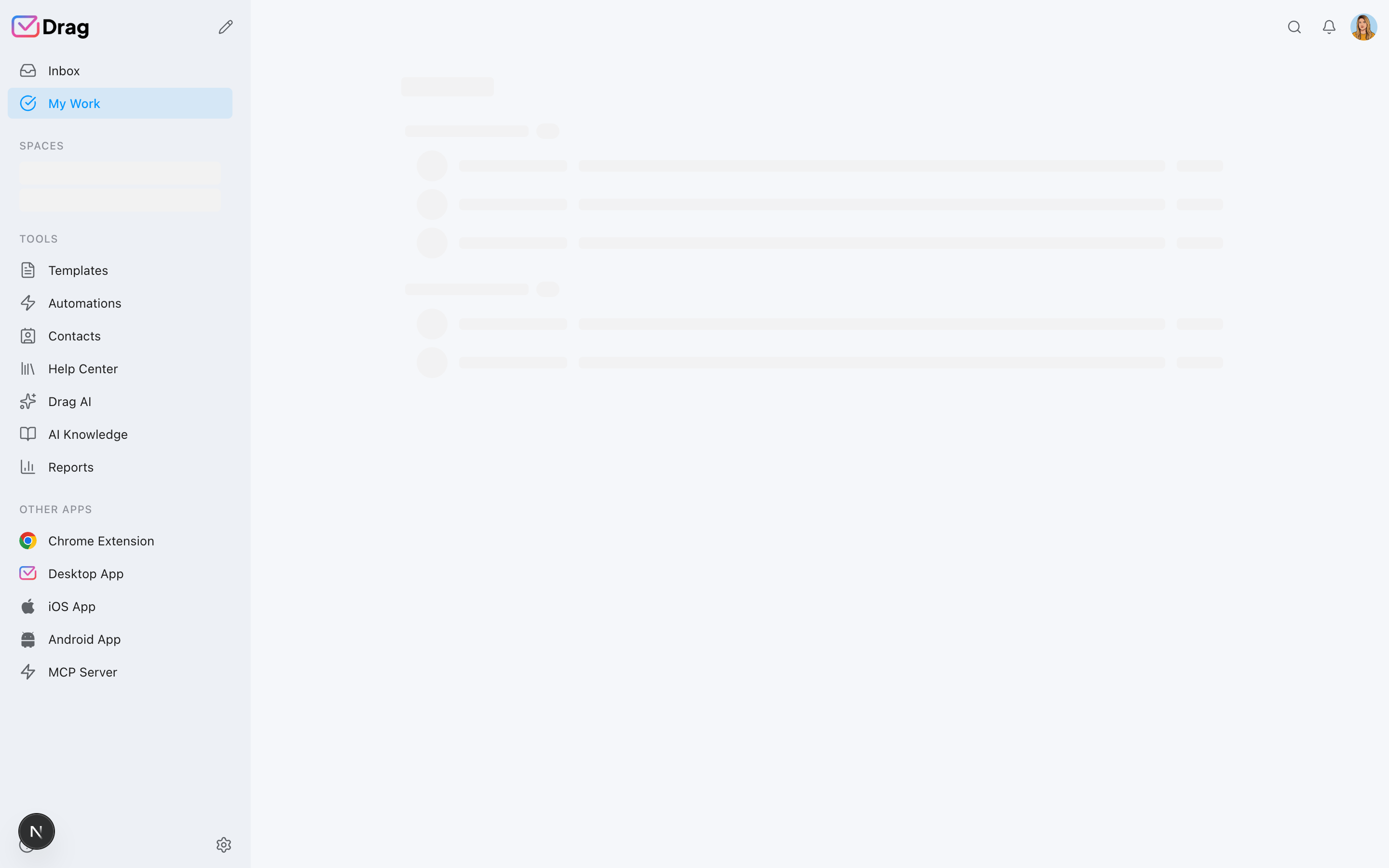
What feeds My Work
My Work fills in automatically from your everyday work:
- Assigning a card to yourself adds it to Assigned to you.
- Setting a due date surfaces the card under Due soon and overdue as the date nears.
- Incoming replies on conversations you own show under Needs your reply.
Because it is built from assignments, due dates and replies, keeping those up to date keeps My Work accurate.
Acting on cards
You can handle a card without leaving My Work. Each item supports quick actions: star, mark read, archive, delete, snooze, and dismiss. Use the board filter at the top to narrow the list to a single board when you want to focus.
My Work vs a board view
A board view shows one board's cards in a chosen layout. My Work is different: it is personal and cross-board, pulling together only the cards that need you, from every board at once.
The desktop app works the same way as the web app, with silent auto-updates.
Tip: For a quick summary, ask Varley: “What's assigned to me across my boards?” Or click Triage on a board to see what needs you first.