Card statuses add a layer of management to your boards. Whether you run customer support, close deals in a sales pipeline, or manage accounts, statuses help you find what needs attention and track how quickly work gets resolved.
Available on: Chrome extension · Web app · Desktop app
The three statuses
Every card is one of three statuses:
- Open: the starting status of a new email or task. It is waiting to be handled.
- Pending: put a card on hold, for example while you wait to hear back from a customer or gather more information.
- Closed: you are finished with the card. If a closed card gets a new reply, it reopens automatically.
Note: A card is marked closed when you archive it, and archived when you mark it closed. It reopens when you unarchive it.
Change a card's status
In the Chrome extension
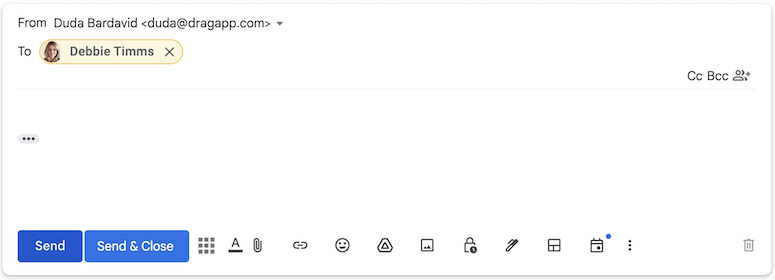
Use the status button on the card's top bar. When you reply, use Send & Close in the compose box to send your reply and close the card in one step.
In the web app
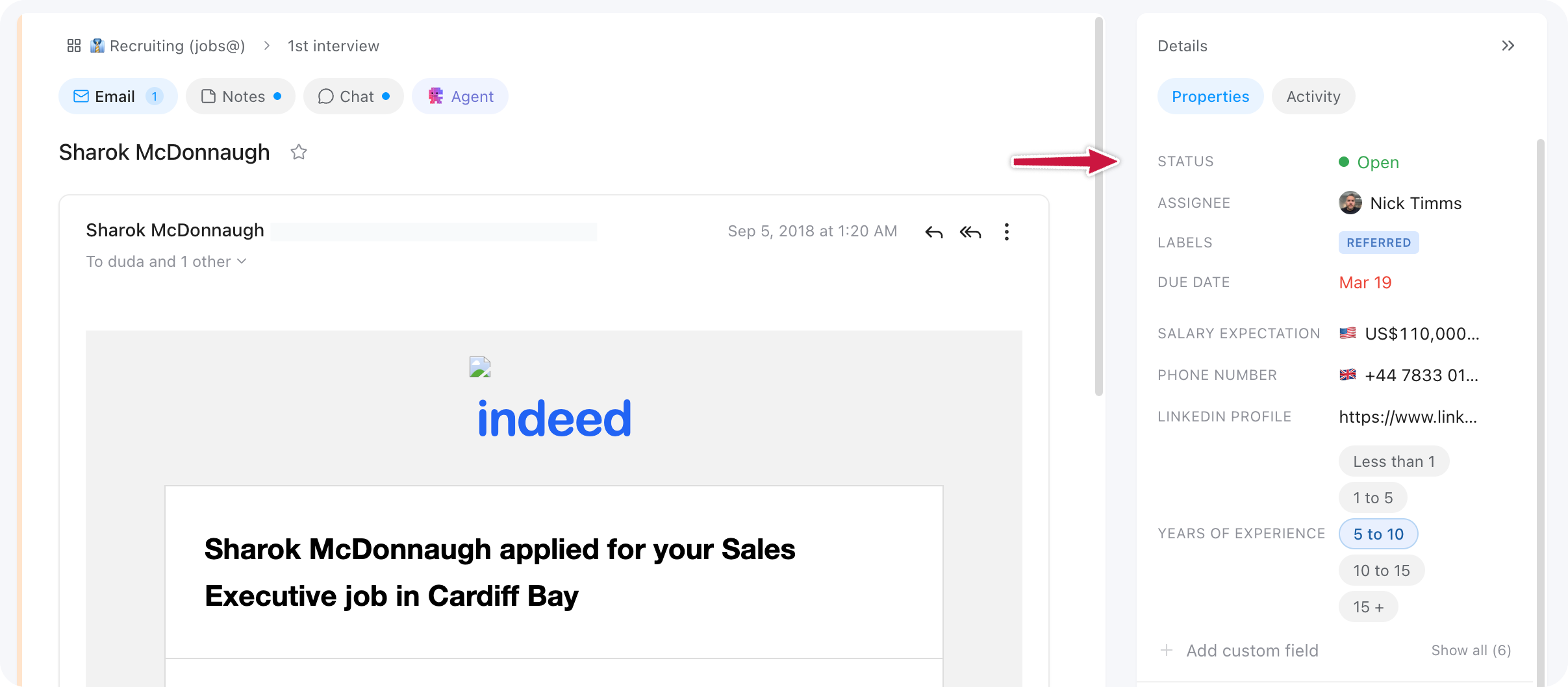
Set the status from the Status control in the card's properties panel. When you reply, use Send & Close to send and close together.
Tip: In the web app you can also set status without opening the card: right-click a card and choose a status, or select several cards and set their status from the toolbar.
Find cards by status
- Views: every board has default views for Pending and Closed cards. Open them from the board's views.
- Filters: filter a board by status, among other criteria.
Reports based on status
Several reports draw on card status:
- Cards report: the Closed tab counts the cards closed on a board in a period.
- Activity report: Resolution time is the average time from a card's creation to being closed.
- Tags report: the closed count and resolution time for cards with specific tags.
- Users report: resolution time per teammate.
Read more about analytics and reports.
The desktop app works the same way as the web app, with silent auto-updates.
Tip: Varley can change status for you: with a thread open, ask “Close this thread”