You can shape a board's columns around the way you and your team work: rename them, reorder them, add or delete them, and (in the Chrome extension) resize them. This article covers each action.
Available on: Chrome extension · Web app · Desktop app
Note: Renaming, reordering, adding and deleting columns work in both the Chrome extension and the web app. Resizing columns is available in the Chrome extension only, because web columns are a fixed width.
Rename a column
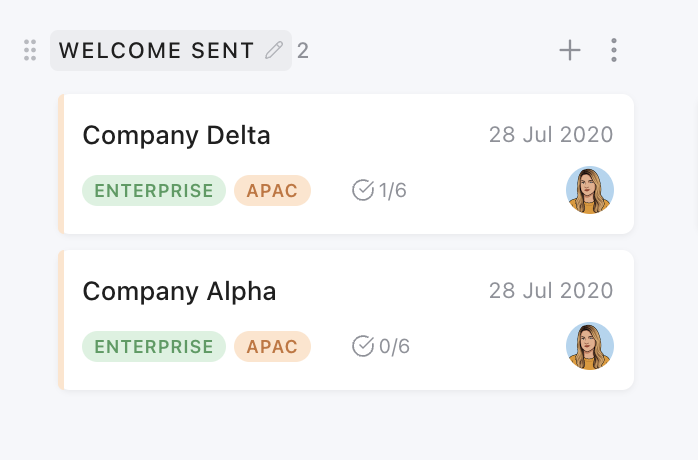
- Click the column title you want to change.
- Type the new title.
- Press Enter, or click outside the box.
Note: Column titles must be between 2 and 25 characters.
Add a column
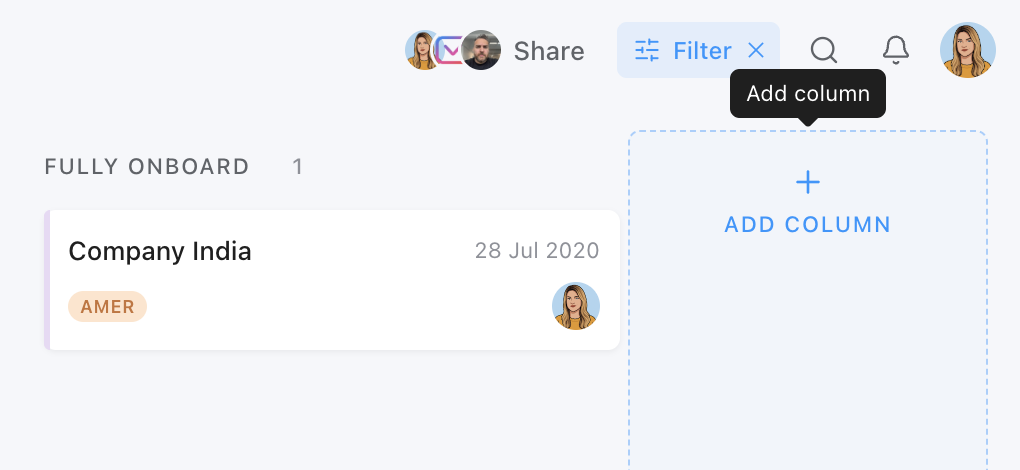
To add a column, click Add column at the end of the board, then give it a name.
Reorder columns
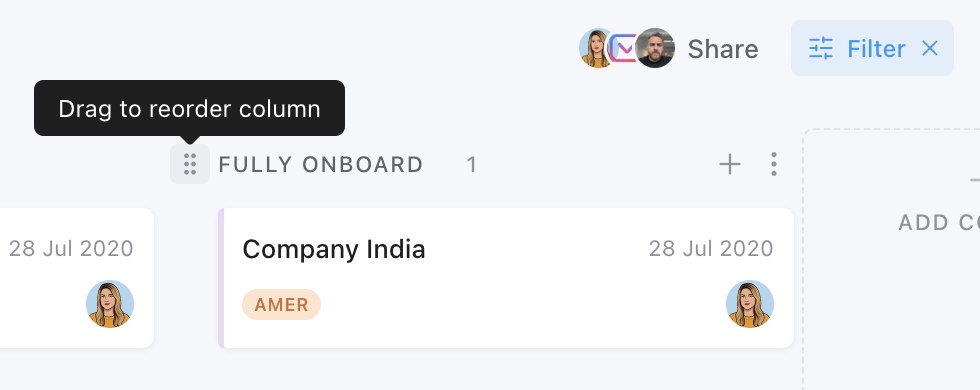
- Hover the blank area next to a column title.
- Click and hold.
Drag the column to where you want it, then drop it.
Note: You cannot move the first column in inbox boards. You also cannot move columns between different boards.
Resize a column (Chrome extension)
Resizing columns is available in the Chrome extension. In the web app, columns stay a fixed width.
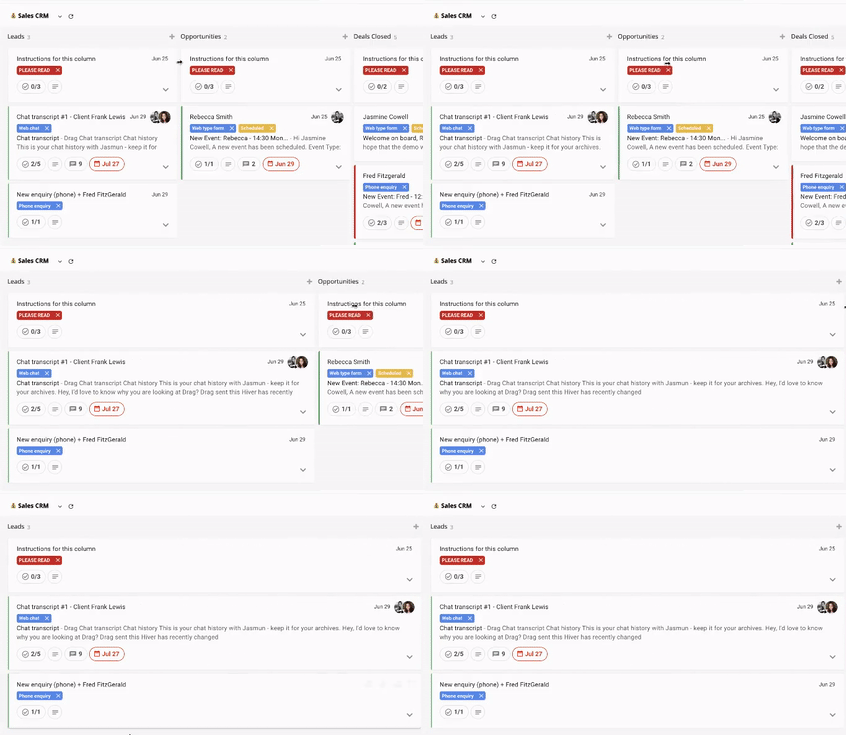
- Hover your cursor over the right edge of a column.
- Click the arrow that appears.
Drag it left or right to set the width.
Collapse a column
To save space, you can collapse a column and expand it again later.
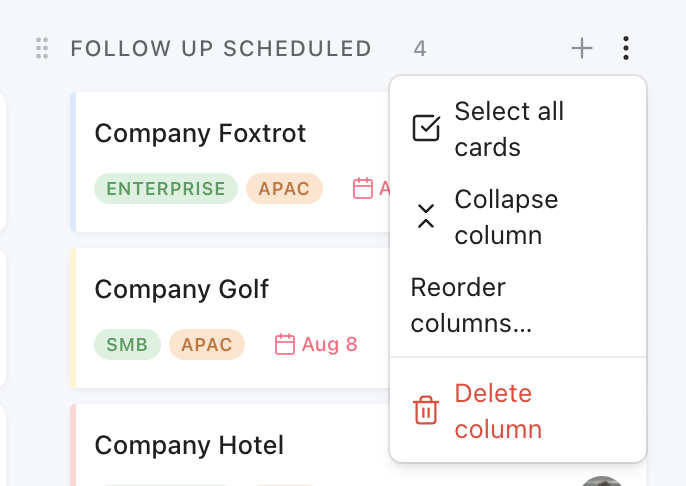
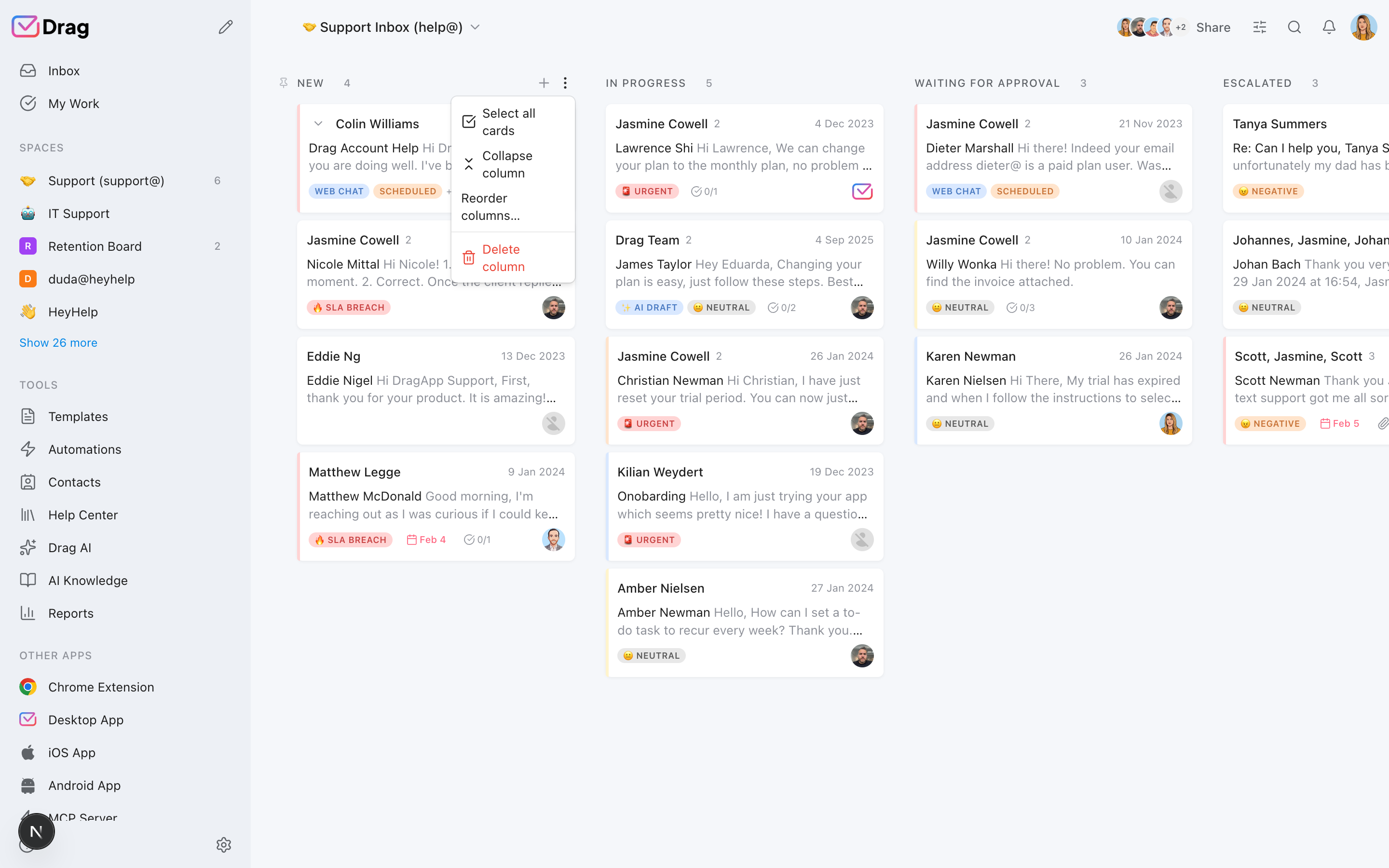
- Open the column's three-dot menu in its header.
- Select Collapse column. The column shrinks to a narrow strip that still shows its name and card count.
To expand it again, click the collapsed column.
Delete a column
By default, a board keeps at least 3 columns, so you can delete the 4th column onward.
- Go to the top right of the column.
- Click the three-dot button.
Select Delete column. This cannot be undone.
What happens to cards when I delete a column?
In Gmail, nothing happens to your emails. They stay where they were.
In Drag, the cards behave as if archived. They no longer appear on the board, but they stay searchable when you turn on Include archived in search.
The desktop app works the same way as the web app, with silent auto-updates.