You can add cards to a board by hand, not only from incoming email. A card you create works the same as one that arrived from an email, with the full Drag Card View.
Available on: Chrome extension · Web app · Desktop app
In Gmail (Chrome extension)
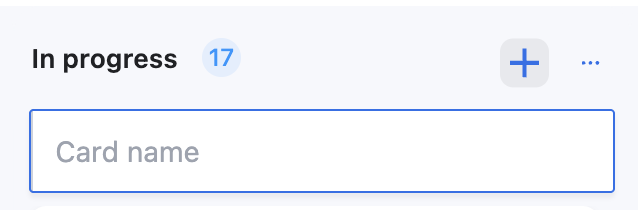
- Click the + button at the top right of a column.
- Type the card name.
- Press Enter, or click outside the field
In the web app
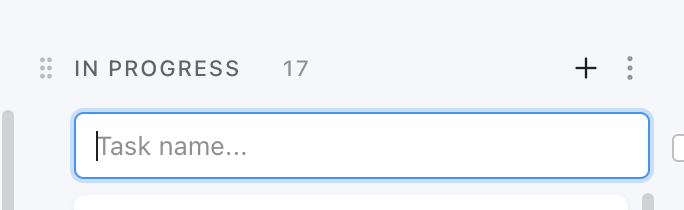
Hover over a column's header and click the + button (Add task). Type a name in the Task name... field and press Enter. The task card is added to that column, with the same card view as any other card. Email cards, by contrast, arrive on a board automatically from incoming email.
The desktop app works the same way as the web app, with silent auto-updates.
Tip: You can also ask Varley: “Create a card titled Q4 launch plan on Marketing”