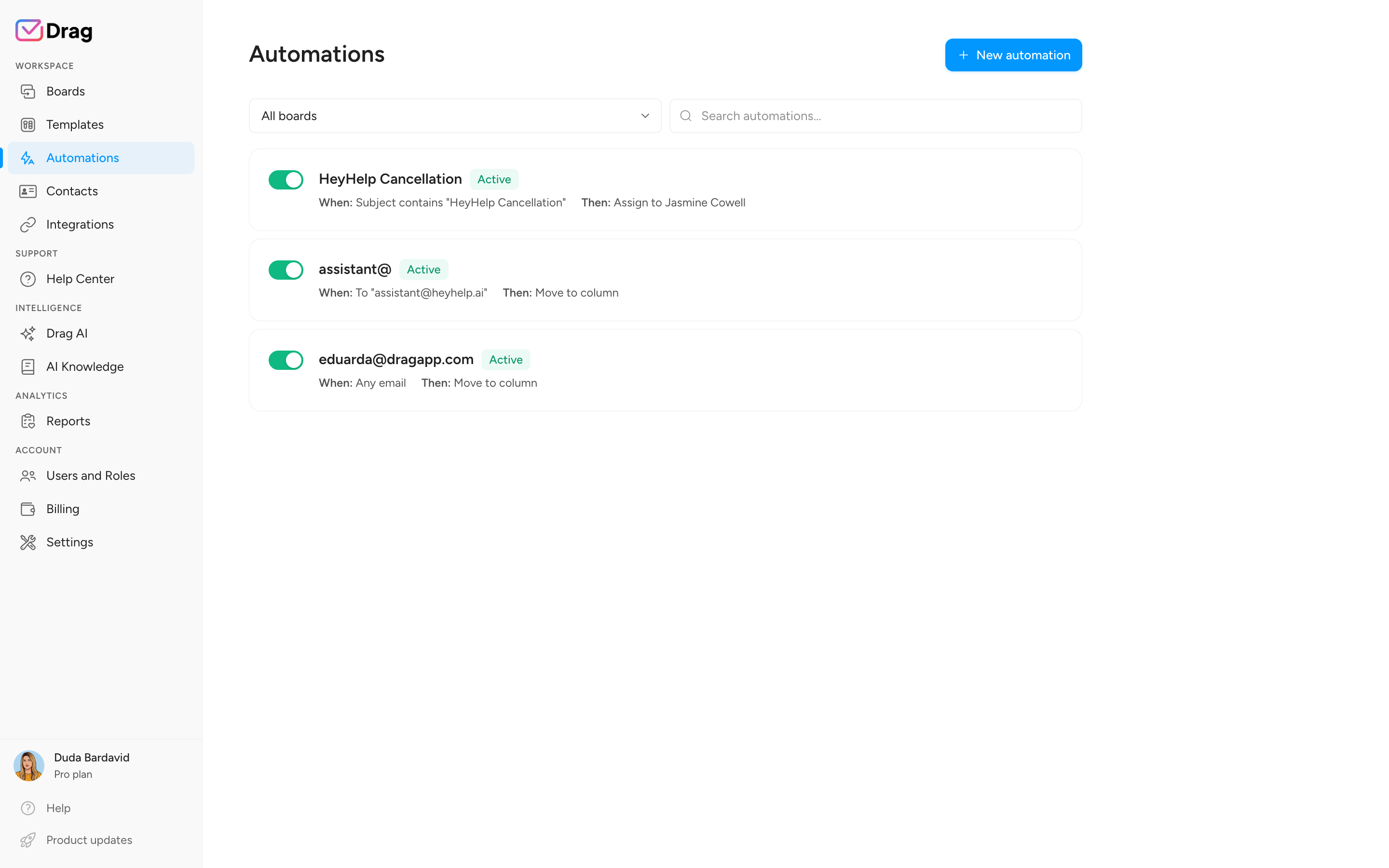
Automations let you preset rules that run repeatable work for you, similar to Gmail filters but for your Drag boards. This article is the full reference for building them.
Available on: Chrome extension · Web app · Desktop app
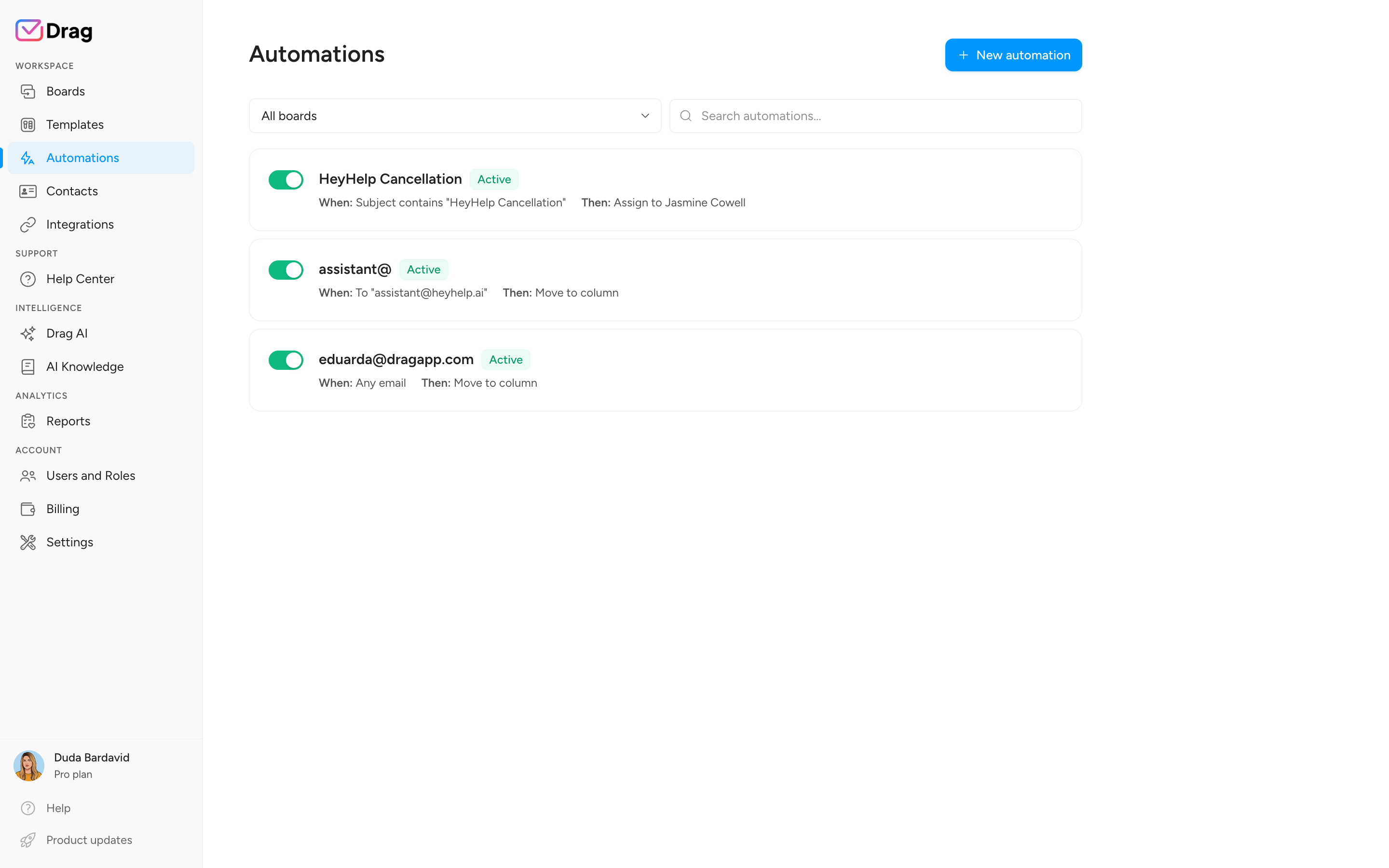
Open Automations: in the Chrome extension, from the dashboard (via the Drag menu); in the web app, from the sidebar.
How automations work
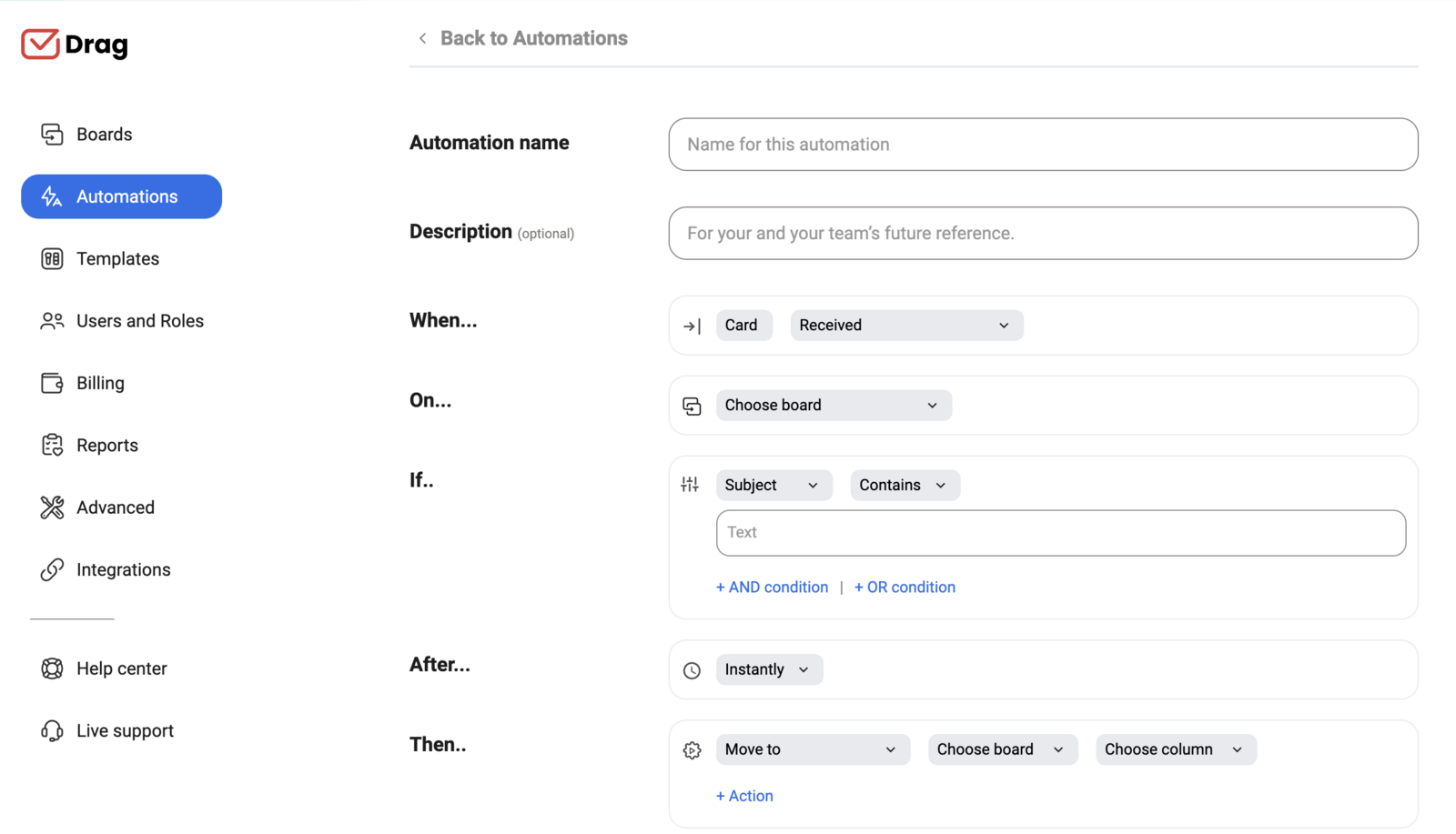
You can build different automations for different boards, and they are cross-board, so an action on one board can trigger an action on another. Each automation is a combination of five parts:
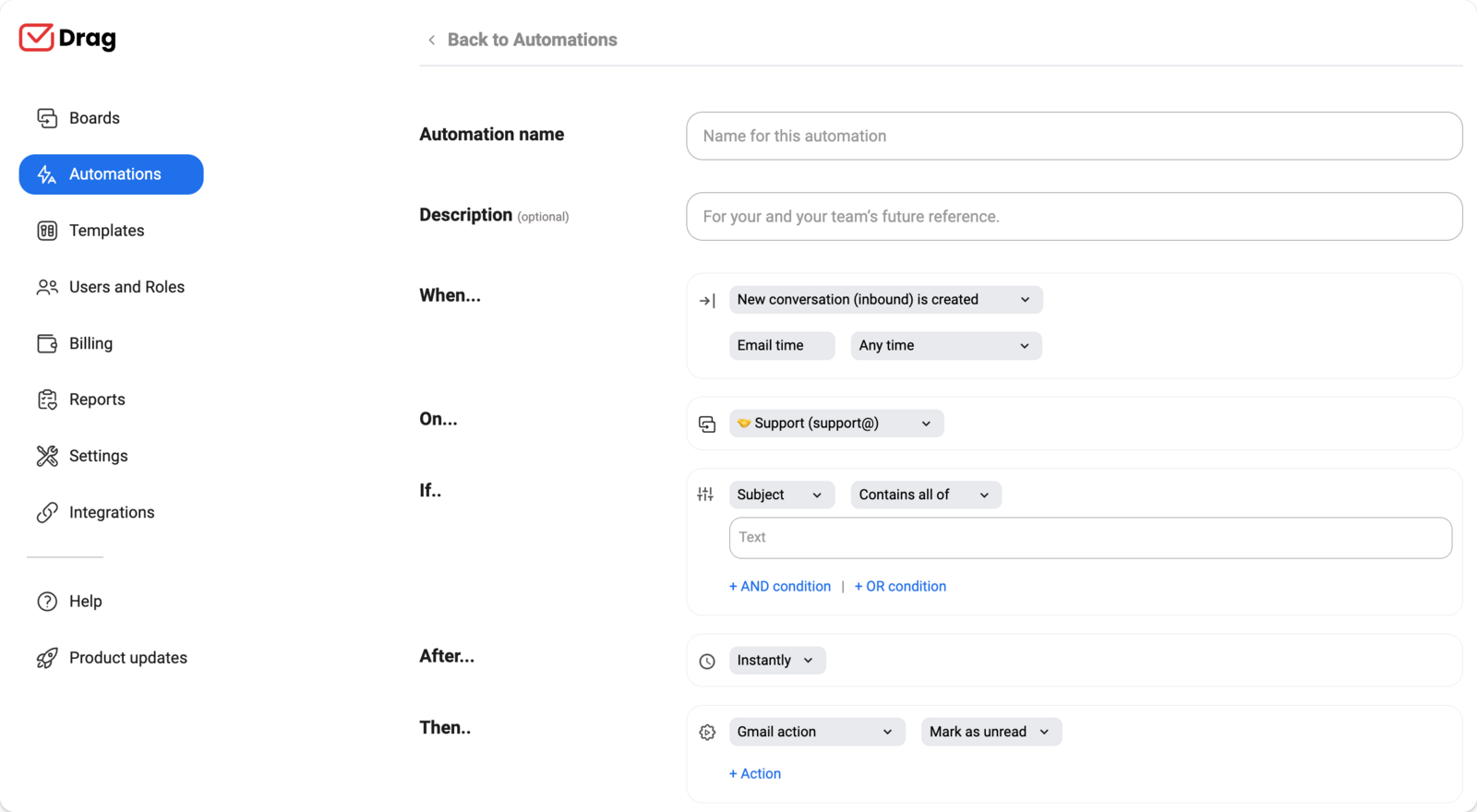
- Trigger (When...): the event that starts the rule.
- Board (On...): the board where the automation starts.
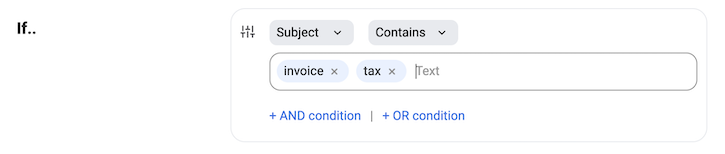
- Conditions (If...): extra conditions that must be met. You can add several.
- Timing (After...): run immediately, or after a delay in minutes, hours or days.
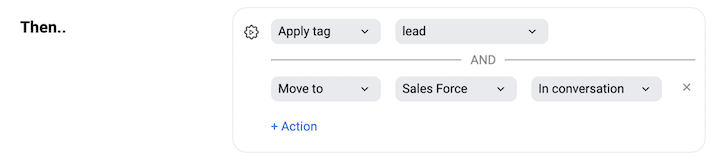
- Actions (Then...): what happens when the rule runs. You can add several.
Triggers
Drag has these triggers. Some need a paid plan, shown in brackets:
- New conversation (inbound) is created: a new inbound email arrives on the board.
- New conversation (outbound) is created (Plus): a new email is sent from the board (using compose as).
- Inbound reply is received (Pro): a reply arrives on an existing thread.
- Outbound reply is sent (Pro): a teammate replies on an existing thread.
- All inbound (Pro): any inbound conversation, whether a new email or a reply.
- All outbound (Pro): any outbound conversation, whether a new email or a reply.
- Tag is added: a specific tag is applied to a card.
- Card is moved to: a card is moved to a particular board or column.
- Card had all subtasks complete: every subtask on a card is checked off.
- Card is overdue: the card's due date and time are reached.
- User is assigned to: a card is assigned to a specific teammate (or anyone).
- User is mentioned: a specific teammate is @mentioned on a card.
- Card status changed: a card's status changes.
- Task is created: a new task card is created.
Conditions
Conditions depend on the trigger. For a new inbound card, for example, you can match on:
- Subject: text in the subject.
- From: text in the sender's address (for example @client.com).
- To: text in the recipient's address.
- Any email: every email on the board.
For each condition you choose how to match the text: Contains all of, Contains any of, or Does not contain.
Timing
Choose whether the automation runs instantly or after a delay.

Note: If a delayed automation's trigger is undone before the delay is up, the automation is paused. For example, a rule set to run 2 days after a card is moved to a column will not run if you move the card elsewhere within those 2 days.
Actions
Drag can automate these actions. Some need a paid plan, shown in brackets:
- Move to: move cards to another board or column.
- Apply tag: add shared tags to cards.
- Remove tag (Plus): take shared tags off cards.
- Change color: change a card's color.
- Assign to: assign teammates to cards.
- Unassign (Plus): remove a card's assignees.
- Assign among (Pro): distribute cards by Round Robin or Load Balancer.
- Gmail actions: mark as read, mark as unread, star, or archive.
- Change status: set Open, Pending or Closed.
- Send email (Plus): send an email template automatically (see auto-responders).
- Send notification (Pro): notify a board member or group in real time.
- Apply card template (Pro): apply a card template to the card.
Create an automation
Open Automations (from the dashboard in the extension, or the sidebar in the web app).
Click Create an automation. You will get the builder.
- Type a name and description (the description shows in your automations list for reference).
Next to When..., pick the trigger.
Next to On..., pick the board where the automation starts.
Next to If..., add conditions. Use + AND condition or + OR condition to add more, and the x to remove one.
Next to After..., choose instant or a delay. For "card received" and "composed from board" triggers, an if no reply checkbox appears, to run only if no reply arrives in the timeframe.
Next to Then..., add the actions. Use + Action to add more, and the x to remove one.
- Click Create. The automation turns on right away.
Edit or delete an automation
Open Automations.
In the list, click the pen icon to edit an automation, or the bin icon to delete it.
Turn an automation on or off
To pause an automation without deleting it, use the toggle next to its name in the automations list.
How automations work with merged cards
For a merged card, the action decides what happens:
| Automation action | Behavior with merged cards |
|---|---|
| Move to | The entire merged card |
| Apply tag | Parent card only |
| Apply color | Parent card only |
| Assign to | Parent card only |
| Mark as read | Parent card only |
| Mark as unread | Parent card only |
| Star | Parent card only |
| Archive | The entire merged card |
| Change status | Parent card only |
| Send email | Does not run on merged cards |
| Assign among | Parent card only |
| Send notification | Always runs, merged or not |
The desktop app works the same way as the web app, with silent auto-updates.
Note: Varley can list a board's automations and, for admins, turn one on or off after you approve. It can't create or edit rules.