Drag works with your Google Calendar. When you give a card a due date, you can also add a matching event to your Google Calendar for that date and time.
Available on: Chrome extension · Web app · Desktop app
Due dates are available on Drag's paid plans (Starter and above).
Set a due date and add a calendar event
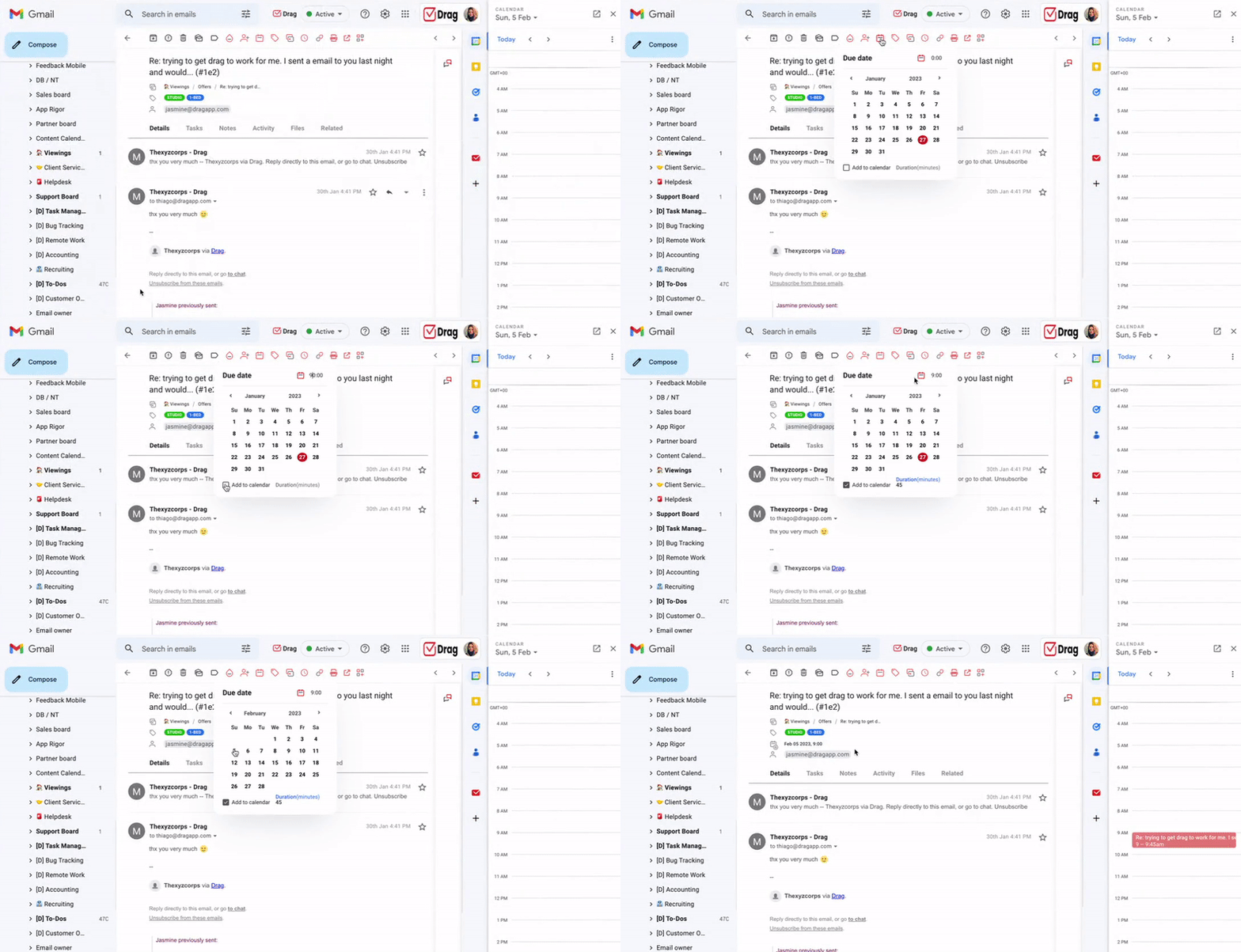
Open the due-date picker on a card, then set the date and, if you want, a calendar event.
- In the Chrome extension, select one or more cards and click the calendar icon in the top bar, or open a card.
- In the web app, open a card (from the card, the card row, or the right-click menu) to open the due-date picker.
In the picker:
- Choose a date. Use Today or Tomorrow, or pick a day on the calendar.
- Turn on Time and set a time if the due date needs one.
- To create a Google Calendar event, turn on Add to calendar.
- Choose a Duration for the event (for example 15 min, 30 min, or 1 hour).
Click Save.
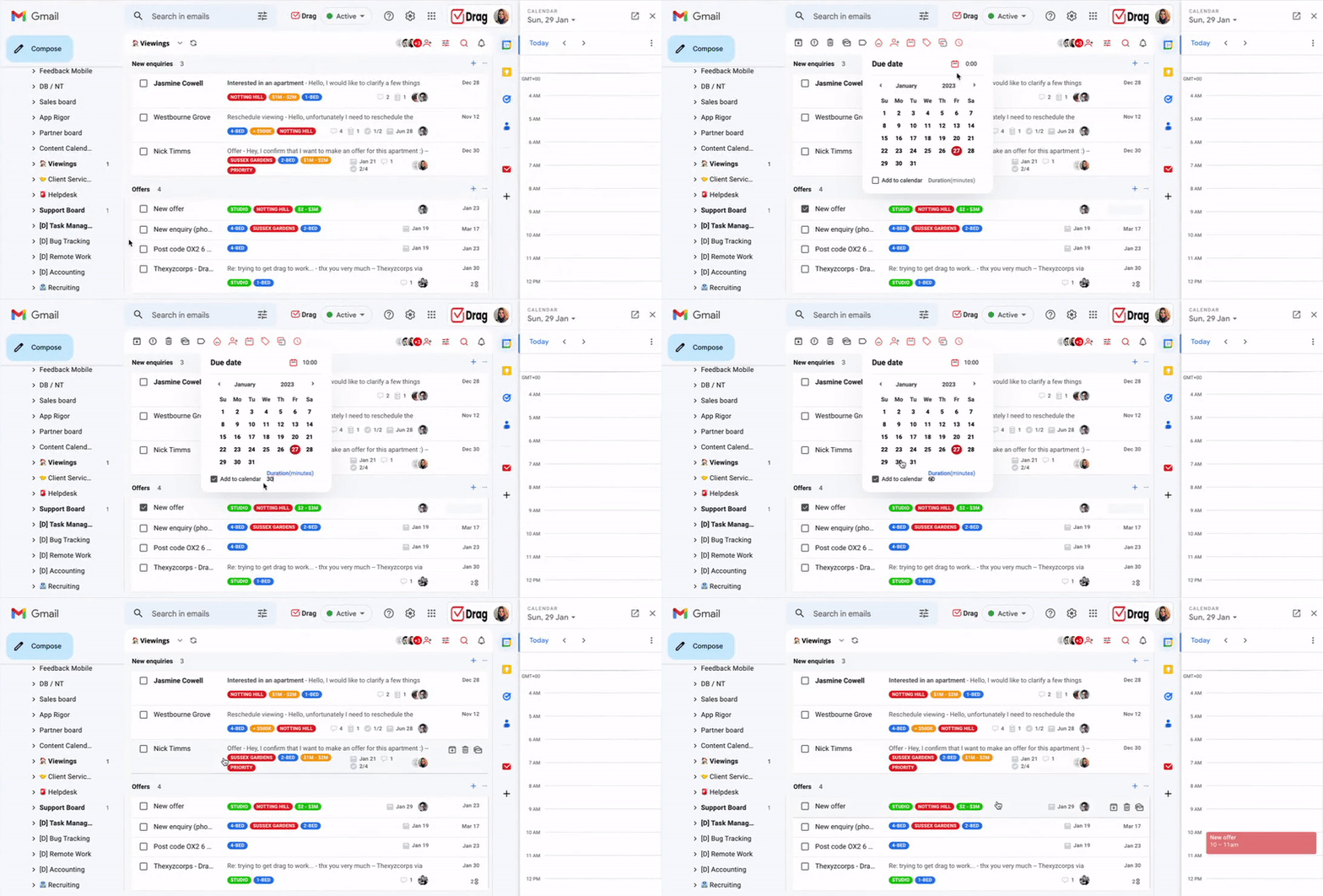
The event appears in your Google Calendar for the date, time, and duration you chose.
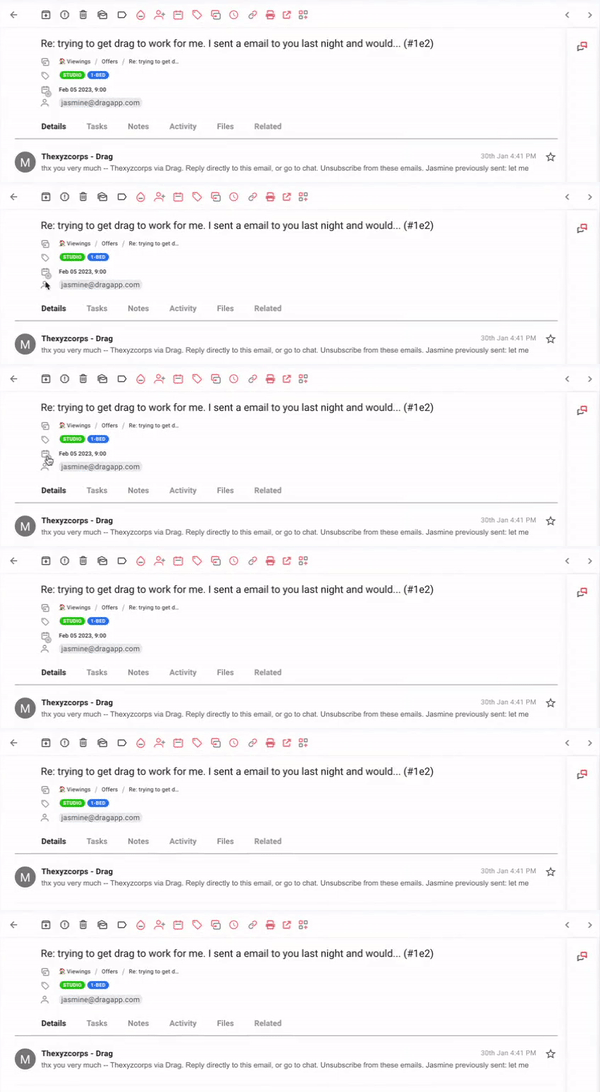
Remove a due date
Open the card and click the x next to its due date, or open the due-date picker and click Remove.
How due dates and calendar events stay in sync
- If you edit a due date and the event was added to your calendar, the event moves to match the new date and time.
- If you remove a due date, its calendar event is deleted automatically.
- If you delete the event directly in Google Calendar, the card and its due date are not affected.
Which calendar gets the event on a shared board
When you set a due date on a card in a shared board, everyone on the board sees the due date on the card. The calendar event is created as follows:
- Shared Inbox: the event is created on the shared account's Google Calendar, for example support@company.com.
- Google Groups, WhatsApp or empty board: the event is created on the Google Calendar of whoever set the due date. Several people can set the same due date on the same card, each creating an event in their own calendar.
Will I get notifications for these events?
Yes. Once an event is on your calendar, Google notifies you as it would for any event you created. To change how you are notified, update your Google Calendar notification settings.
Tip: With a card open, ask Varley: “Set the due date on this card to Friday”