Creating a board takes a minute, and the steps are the same in the Chrome extension and the web app. This article shows how, plus what happens for each board type.
Available on: Chrome extension · Web app · Desktop app
Create a board
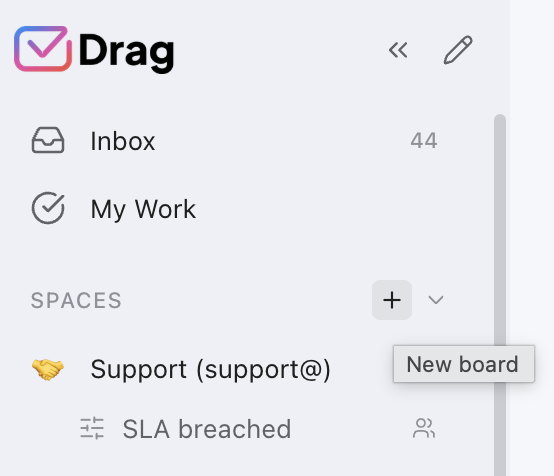
Start a new board. In Gmail, find Drag Boards in the sidebar and click the + icon next to it. In the web app, click + icon next to the Spaces section title.
Extension: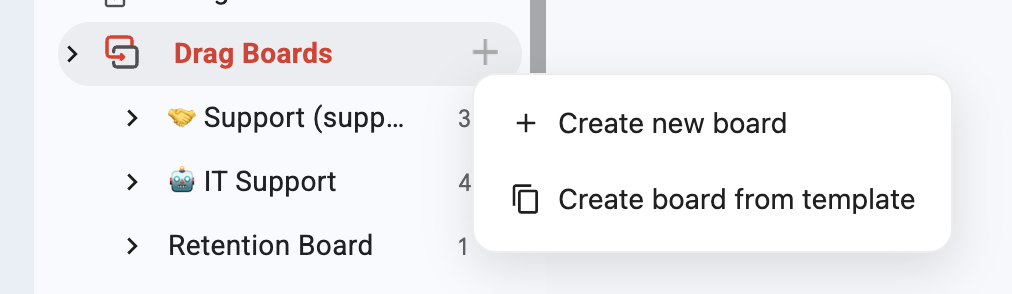
Web app:
- Choose a board type: Empty, Shared Inbox, Google Groups, WhatsApp, or From template. For Shared Inbox or Google Groups, enter the email address linked to that inbox or group. For WhatsApp, connect a WhatsApp Business number (see How to set up a WhatsApp shared inbox). For a template, choose the template to start from.
- Invite the teammates you want to share the board with, or skip to keep it private for now. You can share the board with others at any time later.
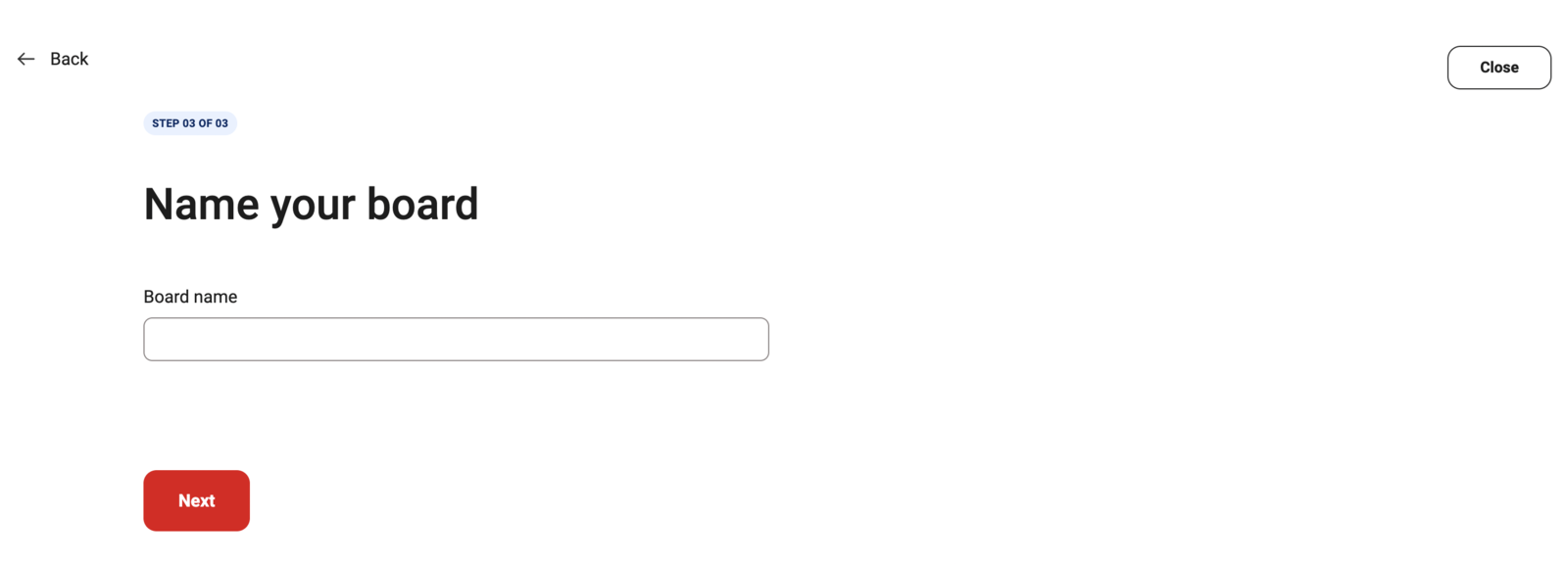
Name your board and finish. Your new board opens right away.
The desktop app works the same way as the web app, with silent auto-updates.
What happens next
If you created an empty board
Your board opens as a blank canvas. From here you can share it with your team, customize your columns, drag cards into it, create new cards, or set up automations.
If you created a shared inbox
You will be asked to:
- Authenticate the email account linked to the shared inbox, so Drag can confirm you have access.
- Accept the permissions Drag needs to connect to that account.
- Let existing and new emails load. Historical emails and all new email land in the first column.
You can then share the inbox, customize your columns, and start replying together.
If you created a WhatsApp board
Connect your WhatsApp Business number to finish setup. Once connected, incoming WhatsApp messages land on the board as cards in real time, and your team replies from the board. See How to set up a WhatsApp shared inbox for the prerequisites and full setup.
If you created a Google Groups board
Your board is ready to go. Every email sent to the Google Group lands on the board so your team can collaborate.
Note: Historical emails from a Google Group do not load. Only emails received after the board is created will appear.