Drag has two kinds of real-time notifications that bring important events to your attention: email notifications and activity-log notifications.
Available on: Chrome extension · Web app · Desktop app
Email notifications
Two events send you an email:
- @mentions: when a teammate mentions you in the team chat.
- Assignments: when a teammate or an automation assigns a card to you.
Activity-log notifications
Activity-log notifications appear on the bell icon at the top right of your screen.
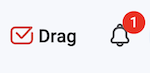
The activity log has two tabs: Priority and All. The All tab logs every event across your boards, while the Priority tab shows only the events that matter most. Only Priority notifications count toward the number on the bell.
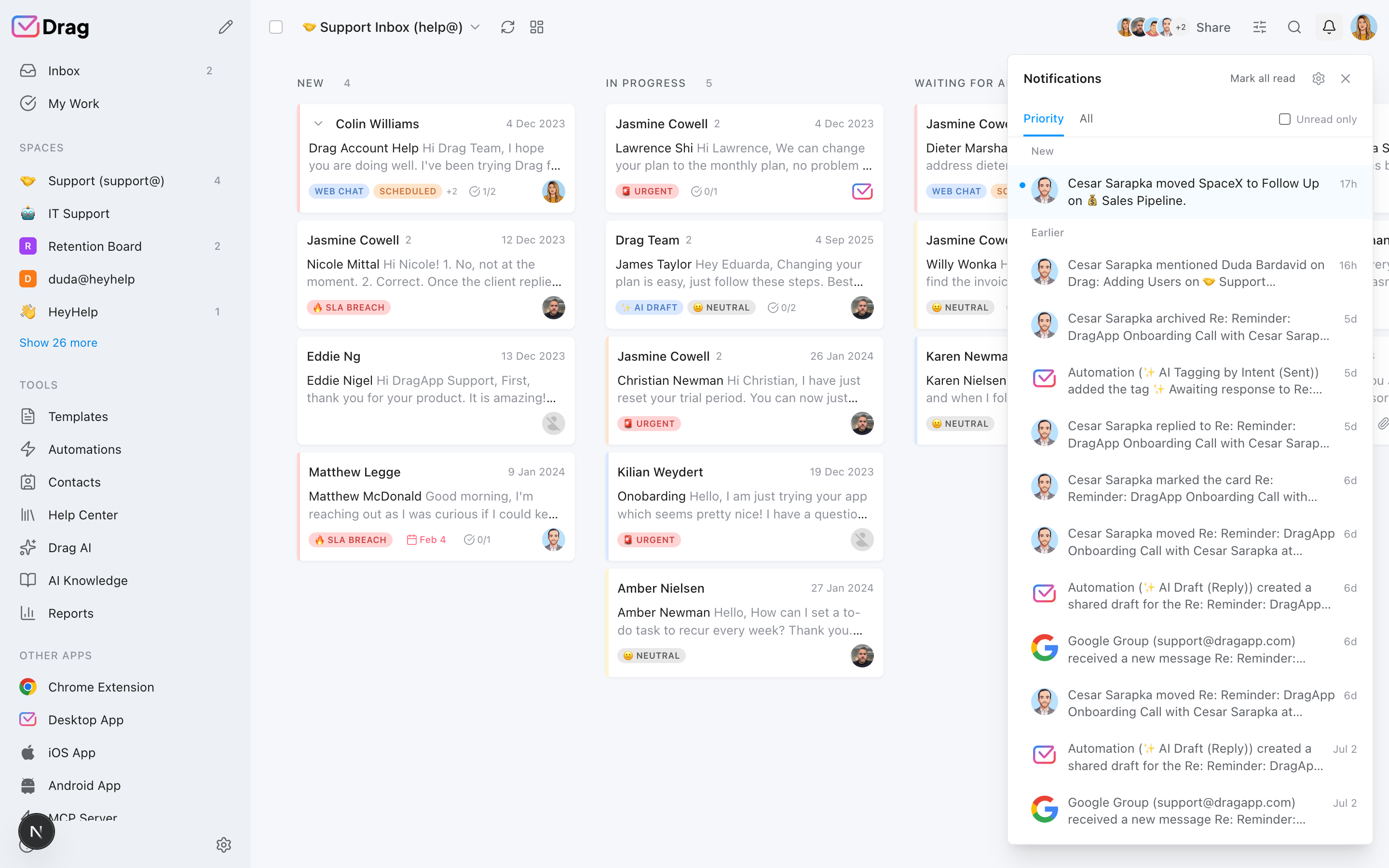
Priority tab
By default, the Priority tab includes:
- New cards on your boards.
- New inbound replies on existing conversations.
- Snoozed cards reopening.
- New assignments to you.
- New chat messages that @mention you.
- Anything on cards assigned to you.
- Cards due soon.
- Cards overdue.
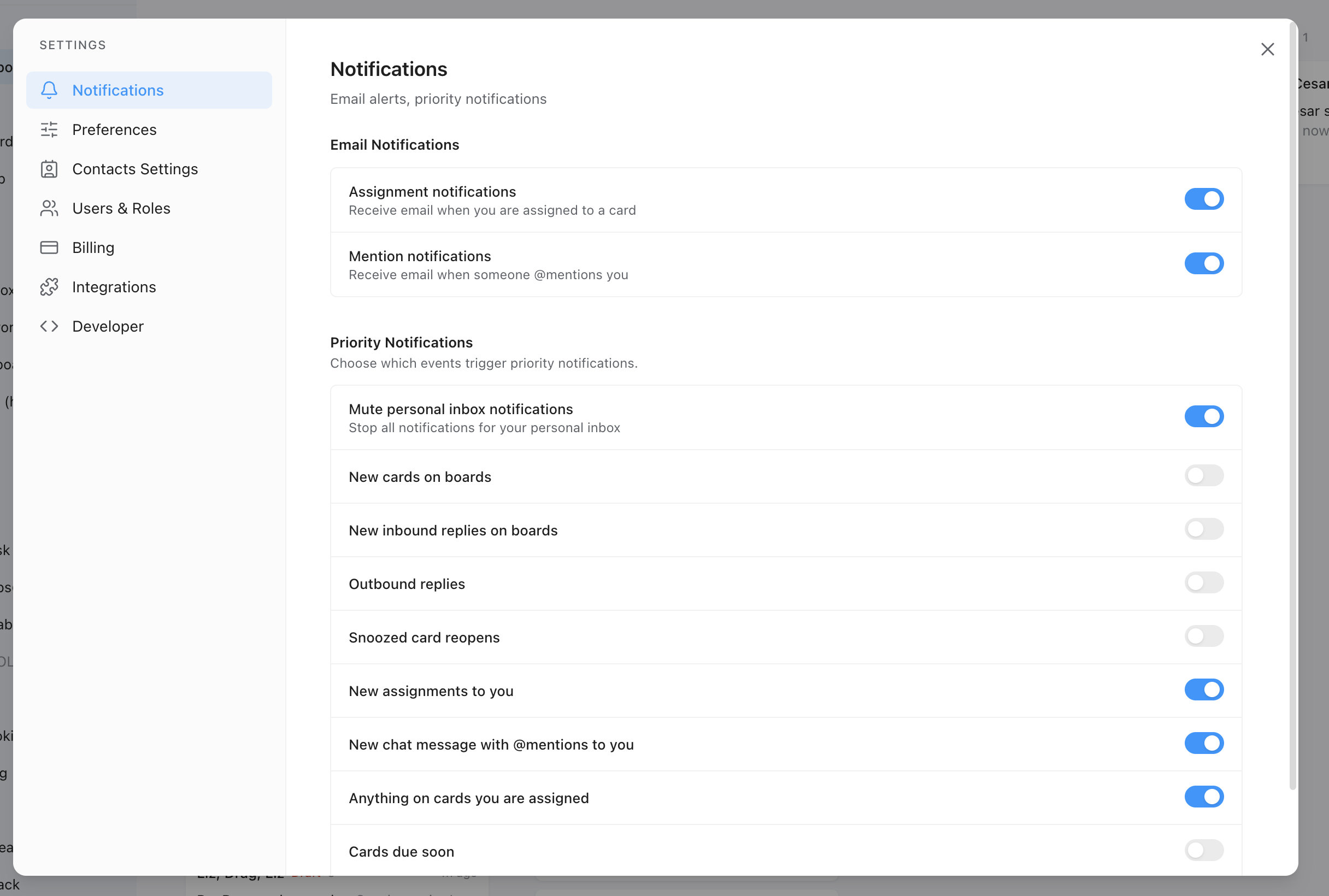
These are on by default, and you can turn other events (such as the outbound replies you send) into priority notifications in your notification settings.
Note: Due-soon notifications are sent at 9am the day before a card is due, and again at 9am on the due day. Overdue notifications are sent at 9am the day after.
All tab
The All tab logs comments, @mentions, due dates, new cards, tasks, notes, assignments, archiving, moves, color coding, tags and merges. Click a notification to jump straight to the card. Use Mark all as read to clear the bold, and Only Unread to filter to unread notifications.
Customize notifications
To customize your email and activity-log notifications, open the dashboard, then Settings, then Notification settings. In the web app, you will find the same controls under Settings, then Notifications.
Note: Mute notifications for personal inbox stops events on your own personal inbox from being treated as priority.
Custom notifications with automations
You can also trigger custom notifications for specific people or teams, based on events you define, with automation rules.
The desktop app works the same way as the web app, with silent auto-updates.