You can rename a board, and depending on your role, delete it or leave it. This article covers all three, and they work the same way in the Chrome extension and the web app.
Available on: Chrome extension · Web app · Desktop app
Rename a board
Any board member can rename a board.
On the extension:
- Open the board.
- Click the board title in the top bar.
- Type the new name.
Press Enter, or click outside the field.

On the web app:
- Open the board
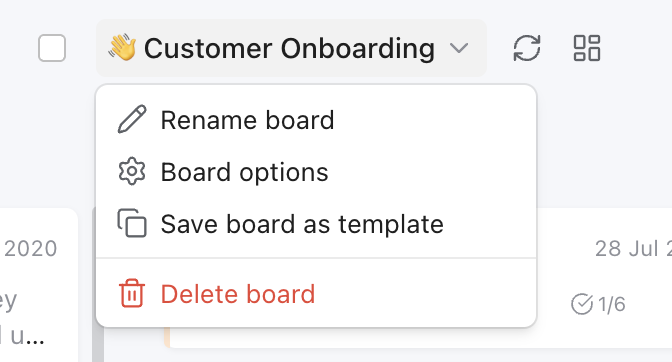
- Click the chevron icon next to the board name
- Click Rename board
Type the name title and hit enter
Delete or leave a board
Who can delete a board depends on who owns it. For Empty and Google Groups boards, the admin is whoever created the board. For Shared Inboxes, the admin is the shared inbox account (for example support@).
If you are the board admin
- Open the board.
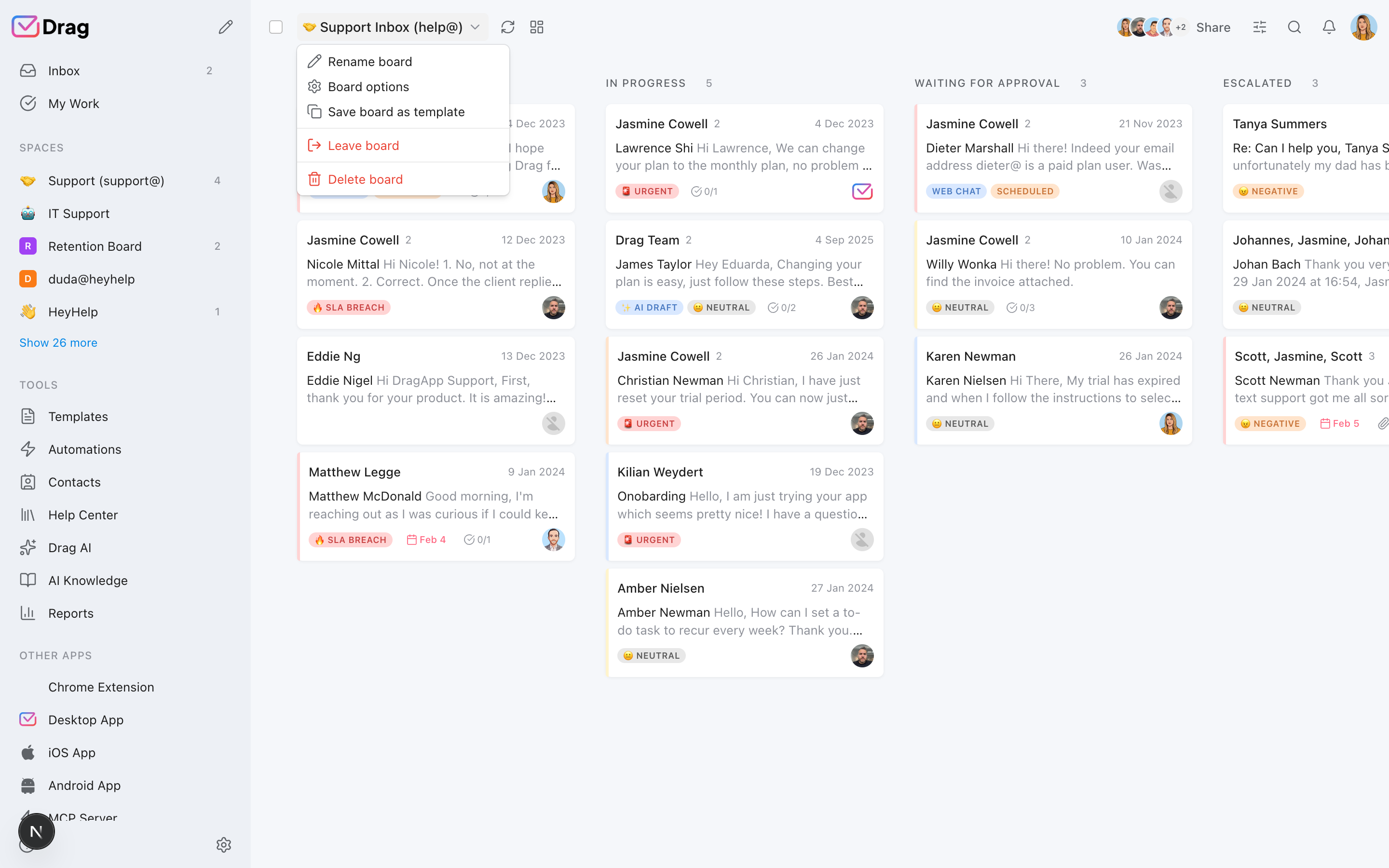
- Click the dropdown menu next to the board title.
Select Delete board.
If you are a contributor
If you did not create the board, you can leave it instead of deleting it.
- Open the board.
- Click the dropdown menu next to the board title.
- Select Leave board.
The desktop app works the same way as the web app, with silent auto-updates.