The Drag web app is Drag on its own, outside Gmail. You get the same boards, cards and team you'd use in the extension, in a full-screen app at app.dragapp.com, plus a few extras that live only on the web. This article walks you through getting in and finding your way around.
Available on: Web app. (The desktop app is this same web app in its own window. Prefer Drag inside Gmail? See the Chrome extension.)
Sign in
- Go to app.dragapp.com in any modern browser.
- Click Continue with Google.
- Choose the Google account you use for Drag, and grant access if prompted.
You'll land on your boards right away. There's nothing to install, and you sign in with the same Google account you already use for Drag, so your boards and cards are the ones you already know.
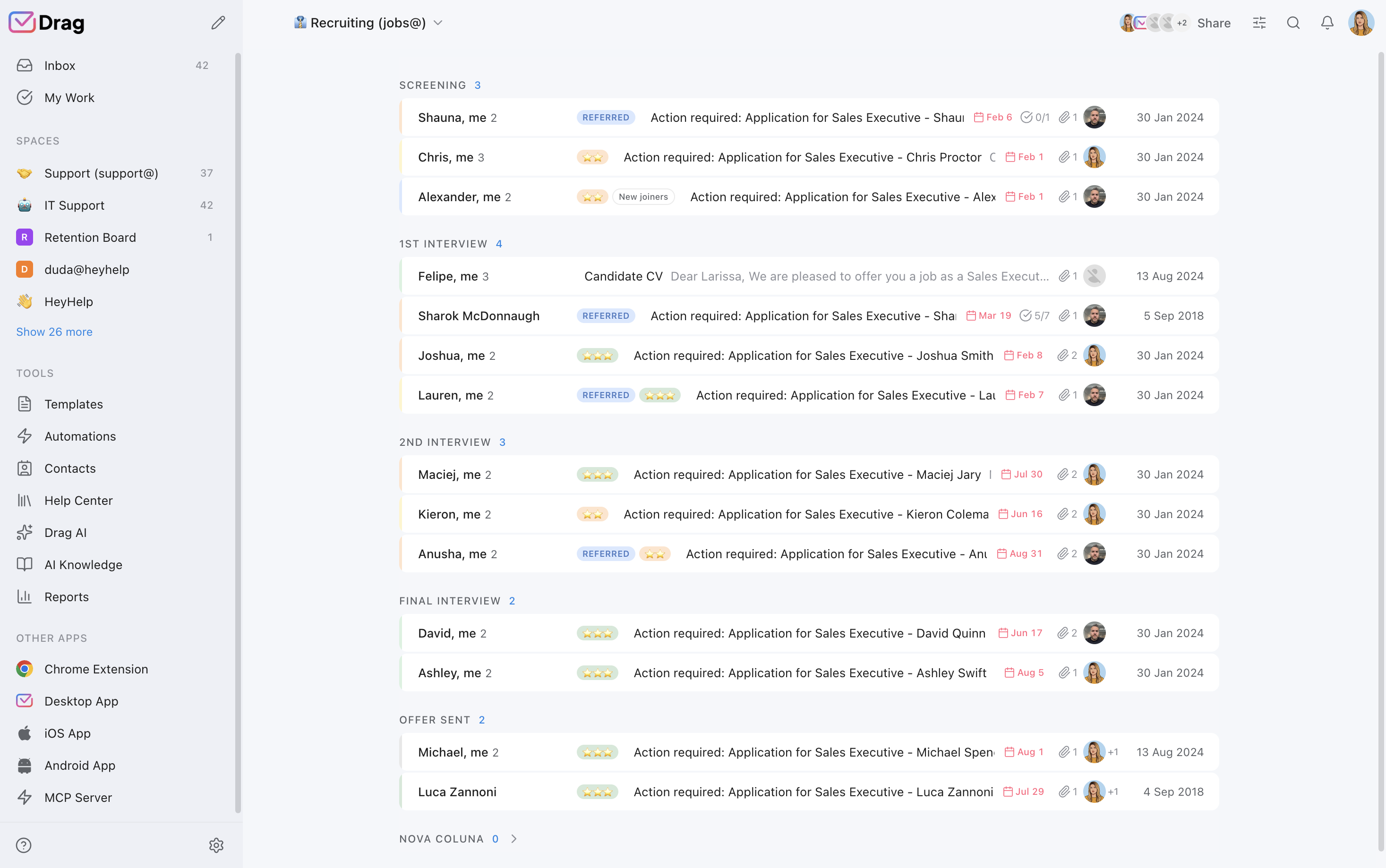
Find your way around
The left navigation is home base. From top to bottom, you'll find:
- Inbox: your primary board, with its usual sub-views (Starred, Snoozed, Sent, Drafts).
- My Work: a personal view of everything assigned to you across boards (more on this below).
- Spaces: all your boards, which you can open, reorder and add to.
- Tools: shortcuts to Templates, Automations, Contacts, Help Center, Drag AI, AI Knowledge and Reports.
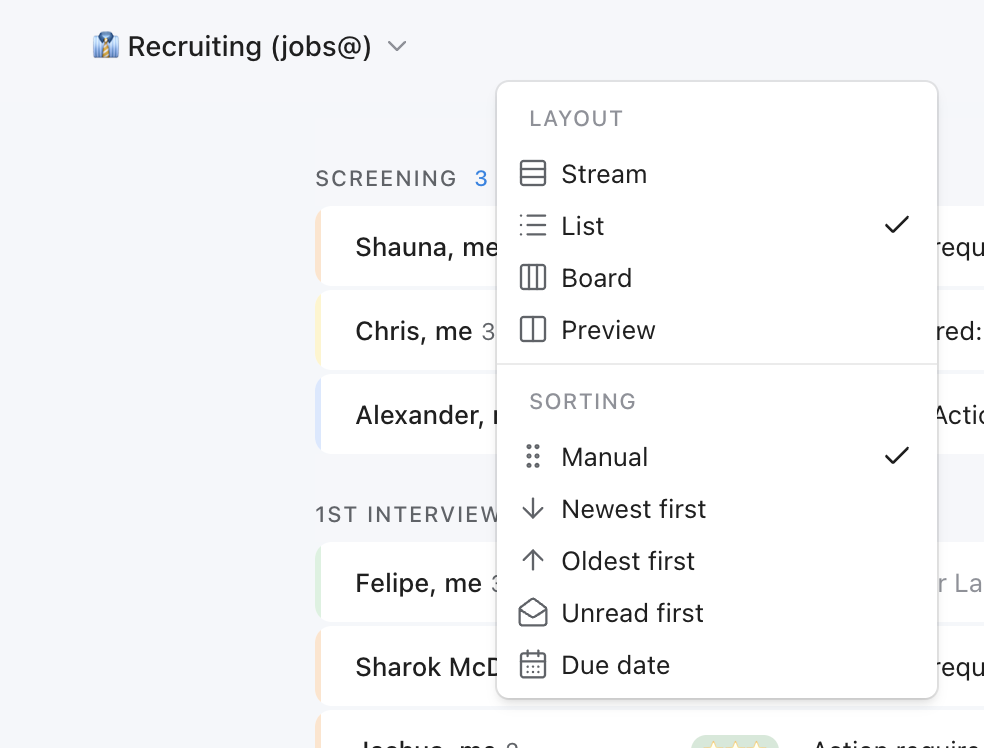
Open a board and you can switch how it's laid out using the view switcher: Stream, List, Board (Kanban) (columns of cards) and Preview. Stream is a web-only view that shows activity as a running feed.
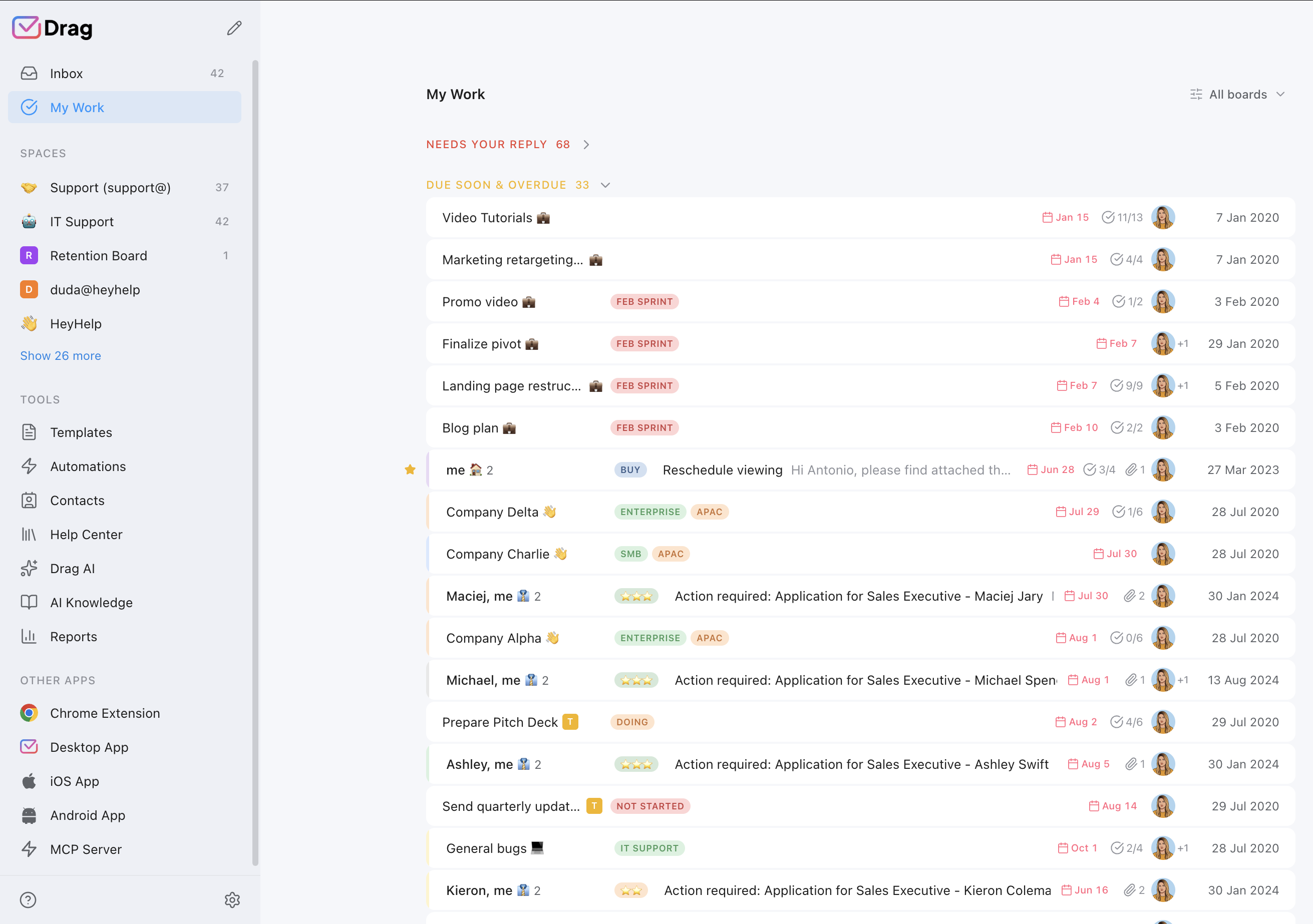
My Work
My Work pulls together every card assigned to you, across all your boards, into one place. It's useful first thing in the day when you want to see what's on your plate without opening each board one by one. Select it from the left navigation.
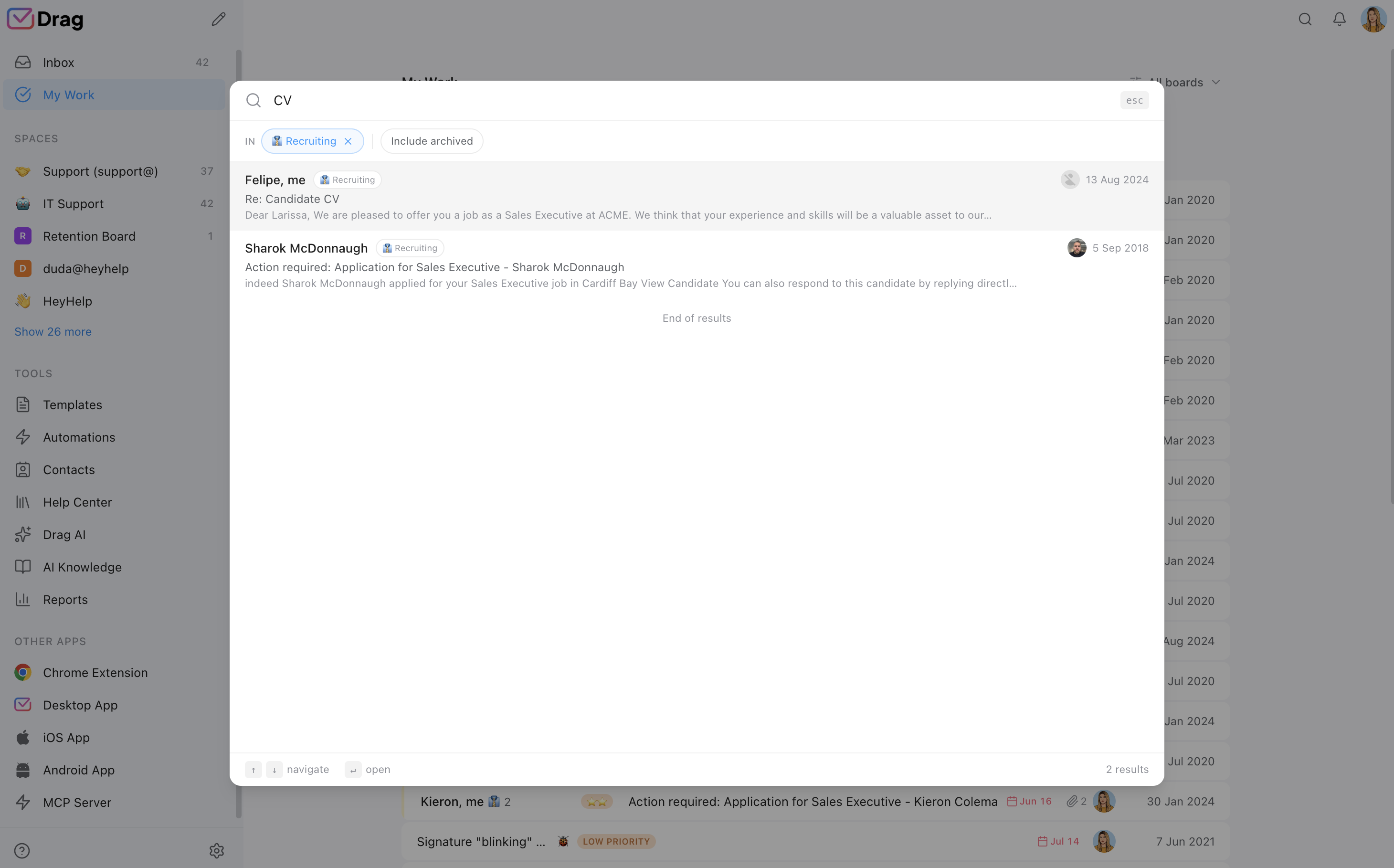
Search
To find a card or conversation, click the search icon in the top bar (or press ⌘K on Mac, Ctrl+K on Windows) to open search. You can type a query and scope it to a specific board.
Edit cards without opening them
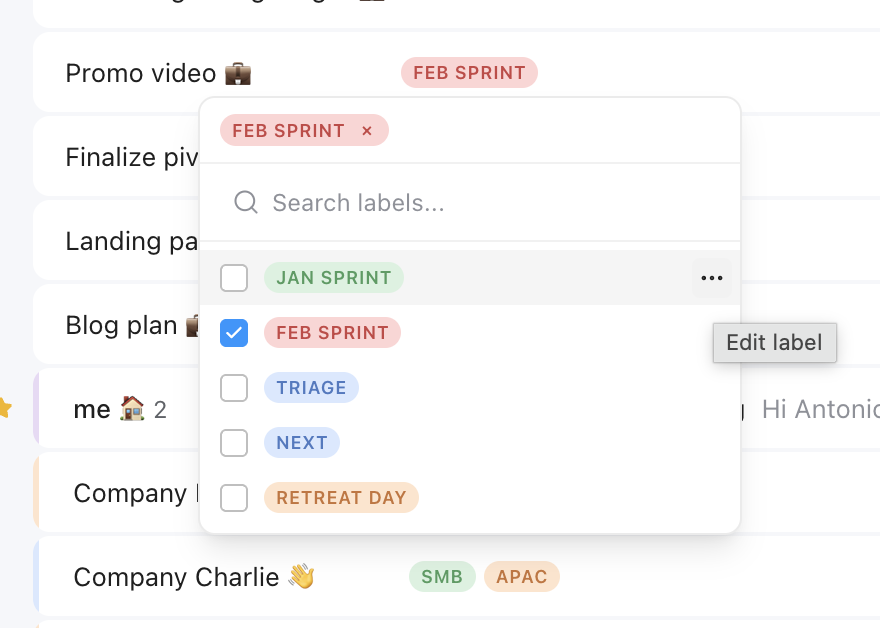
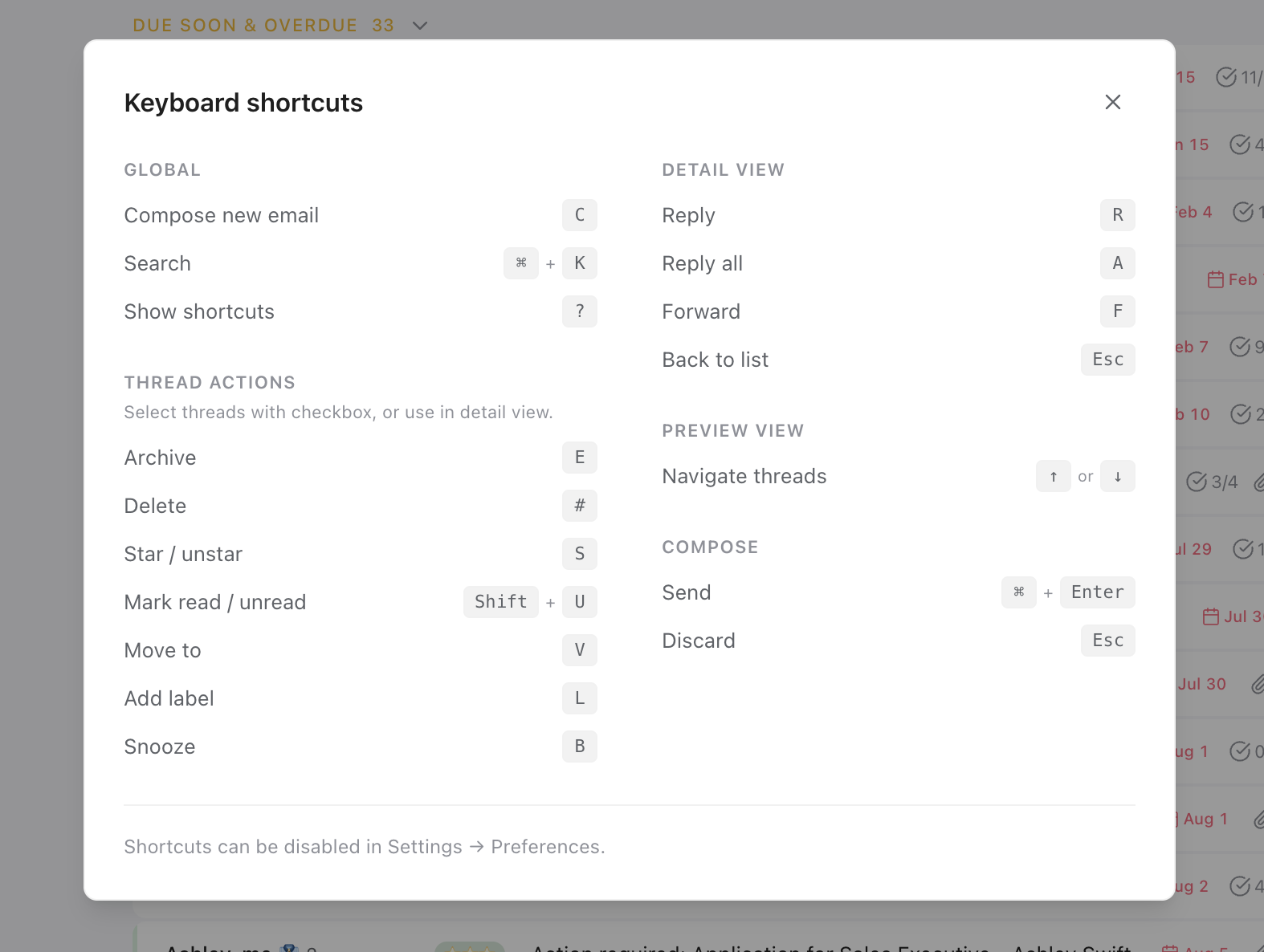
In the web app you can change a card's properties straight from the board, without opening it. Hover a card and use its inline controls to assign it, set a due date, add tags, or tick off subtasks. Right-click a card for more (status, color, move, snooze), select several cards to change them together from the toolbar, or use single-key shortcuts (for example E to archive, B to snooze). This works from every board layout: Kanban, List, Stream and Preview.
Ask Varley
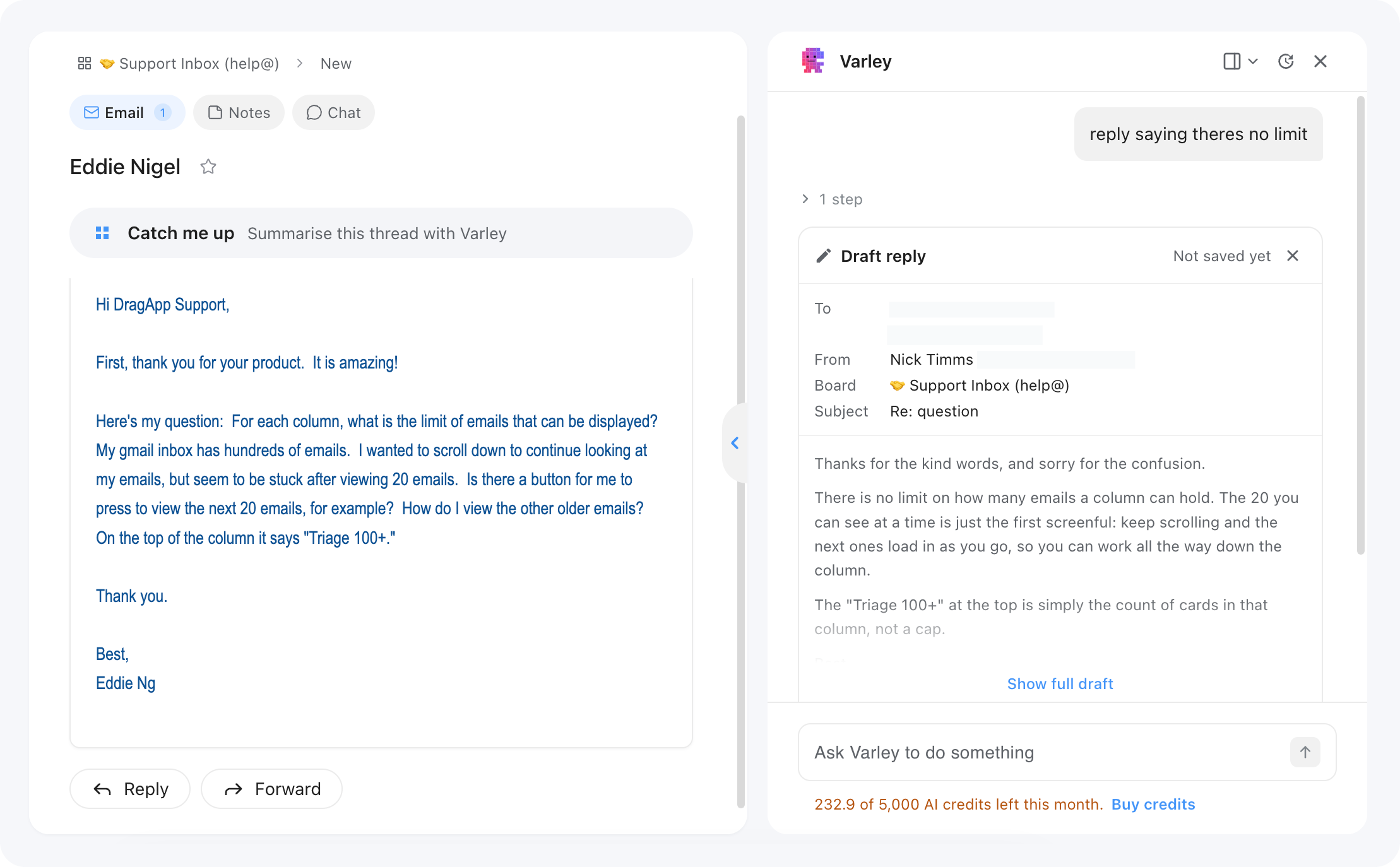
Varley, the AI inside Drag, is one click away. Click the round Varley button at the bottom right to open it, then ask for what you need in plain English.
- Use the view menu in the panel header to switch between Sidebar and Full screen.
- On a board, click Triage in the board header to see what needs you first.
- In an email thread, click Catch me up in the thread header for a summary.
See How do I open and use Varley?
A few web-only extras
Alongside Stream and My Work, the web app adds a couple of things you won't find in the extension:
- Dark mode: open Settings from the avatar menu in the top right, go to Preferences, and pick your Theme (light, dark or system).
- Keyboard shortcuts: single-key actions for common tasks, which you can turn on or off under Settings → Preferences.
To switch between accounts or sign out, click your avatar in the top right.
When to use the web app vs the extension
Both give you the same boards and cards, so it comes down to how you like to work:
- Use the extension if you live in Gmail and want Drag right beside your email. It also has a couple of extension-only features: email open-tracking and resizing board columns.
- Use the web app if you'd rather have Drag in a full-screen app, or you want the web-only extras (Stream, My Work, dark mode, keyboard shortcuts).
You can use both at the same time, and everything stays in sync. Want it in its own window instead of a browser tab? See How do I install the Drag desktop app?