The Drag desktop app puts Drag in its own window on your Mac, separate from your browser tabs. Under the hood it's the same web app you'd use at app.dragapp.com, so it has all the same features, with one extra convenience: it keeps itself up to date automatically.
Available on: Desktop app (macOS). A Windows app is coming soon. (Prefer Drag in your browser or inside Gmail? See How do I use the Drag web app? and How do I install the Drag Chrome extension?.)
Download and install
- Go to the Drag desktop download page and download the app for macOS.
- Open the downloaded .dmg file, then drag the Drag icon into your Applications folder.
- Open Drag from your Applications folder.
Sign in
The desktop app signs in exactly like the web app:
- Open Drag.
- Click Continue with Google.
- Choose the Google account you use for Drag.
Your boards load right away, the same ones you'd see in the web app or the extension.
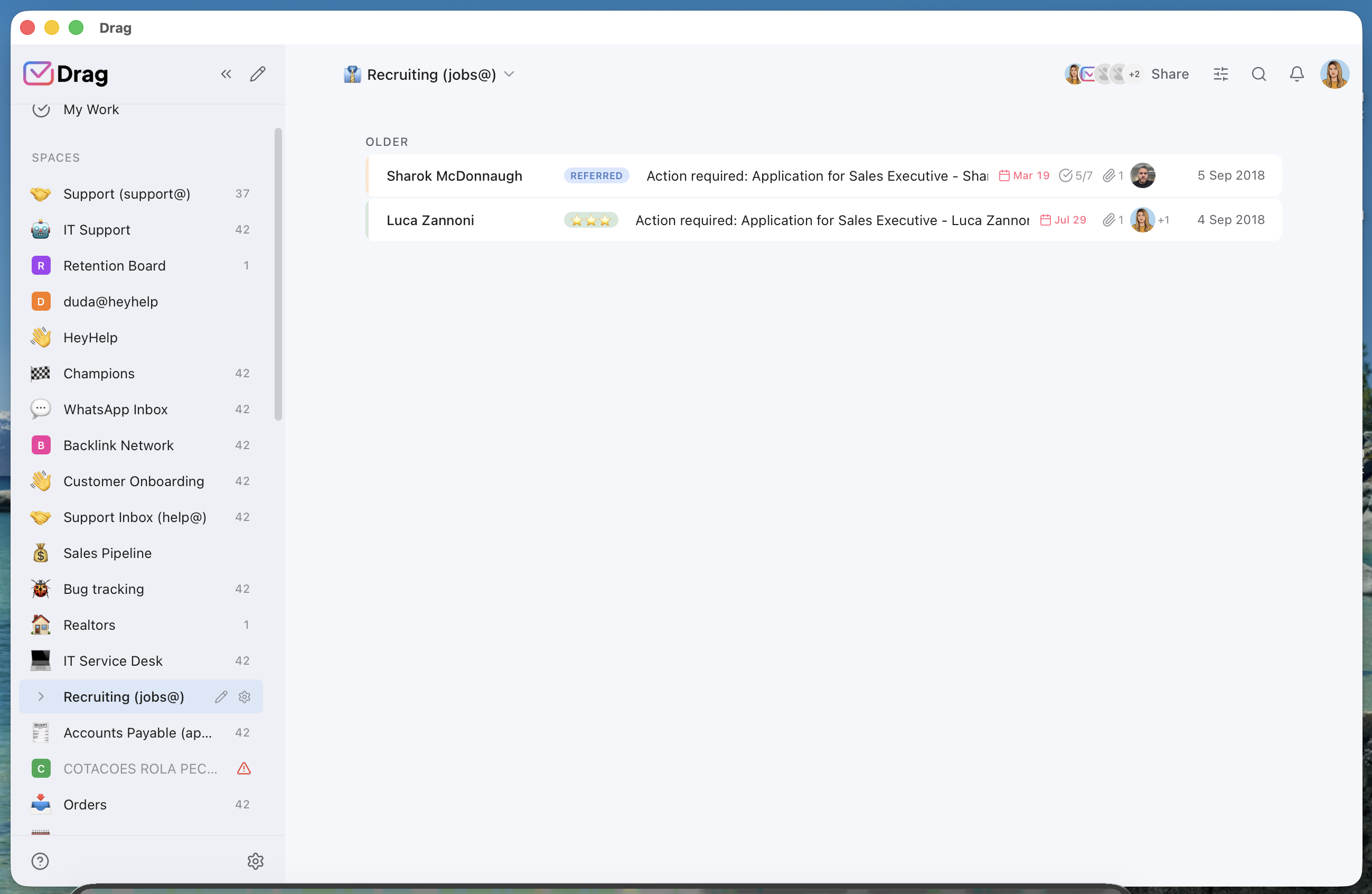
What you get
The desktop app is the web app in a native window, so it has full feature parity: the same boards, cards, views (including the web-only Stream view and My Work), dark mode and keyboard shortcuts. For a tour of those, see How do I use the Drag web app?
Beyond running in its own window, the desktop app adds no separate native features. If you already know the web app, you already know the desktop app.
Staying up to date
You don't need to update the desktop app by hand. It checks for a new version quietly in the background each time you launch it, downloads any update, and applies it the next time you open the app. If your connection drops mid-check, it's ignored so it never blocks you from getting to work.
Note: Because updates apply on the next launch, quitting and reopening the app is the quickest way to make sure you're on the latest version.
Tip: Varley works in the desktop app the same way as in the web app: click the round Varley button at the bottom right. See How do I open and use Varley?