Drag comes in a few flavors, and they all share the same boards, cards and team. Which one you pick comes down to where you like to work and whether you want a couple of web-only extras. You can use more than one at the same time, and they stay in sync.
Available on: Chrome extension · Web app · Desktop app · Mobile app
The short version
| Platform | Where it runs | Best if you… |
|---|---|---|
| Chrome extension | Inside Gmail (Chrome or Edge) | Live in Gmail and want Drag right next to your email |
| Web app | app.dragapp.com, in any browser | Prefer a full-screen app, or want the web-only views below |
| Desktop app | A standalone app on macOS or Windows | Want Drag in its own window, separate from your browser tabs |
| Mobile app | iOS and Android | Need to check and update cards on the go |
The Chrome extension
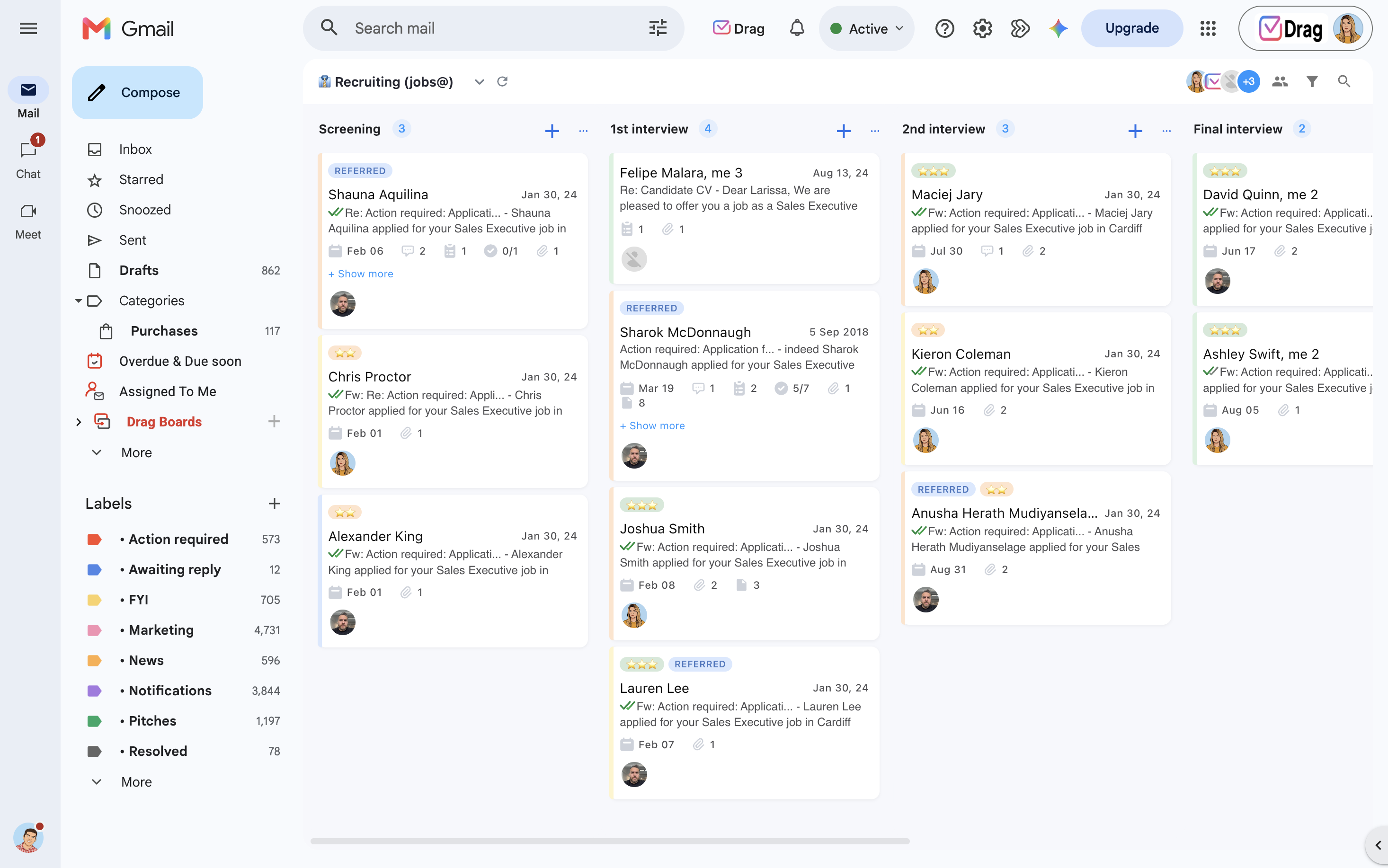
The extension brings Drag into Gmail, so your boards sit alongside your everyday email. You get the Kanban, List and Preview views, and a couple of things that live only in the extension today: email open-tracking and resizing board columns.
Extension settings (billing, users and roles, automations, reports and more) open in the dashboard. Click the Drag menu button in the top right of Gmail to get there.
To get started, see How do I install the Drag Chrome extension?
The web app
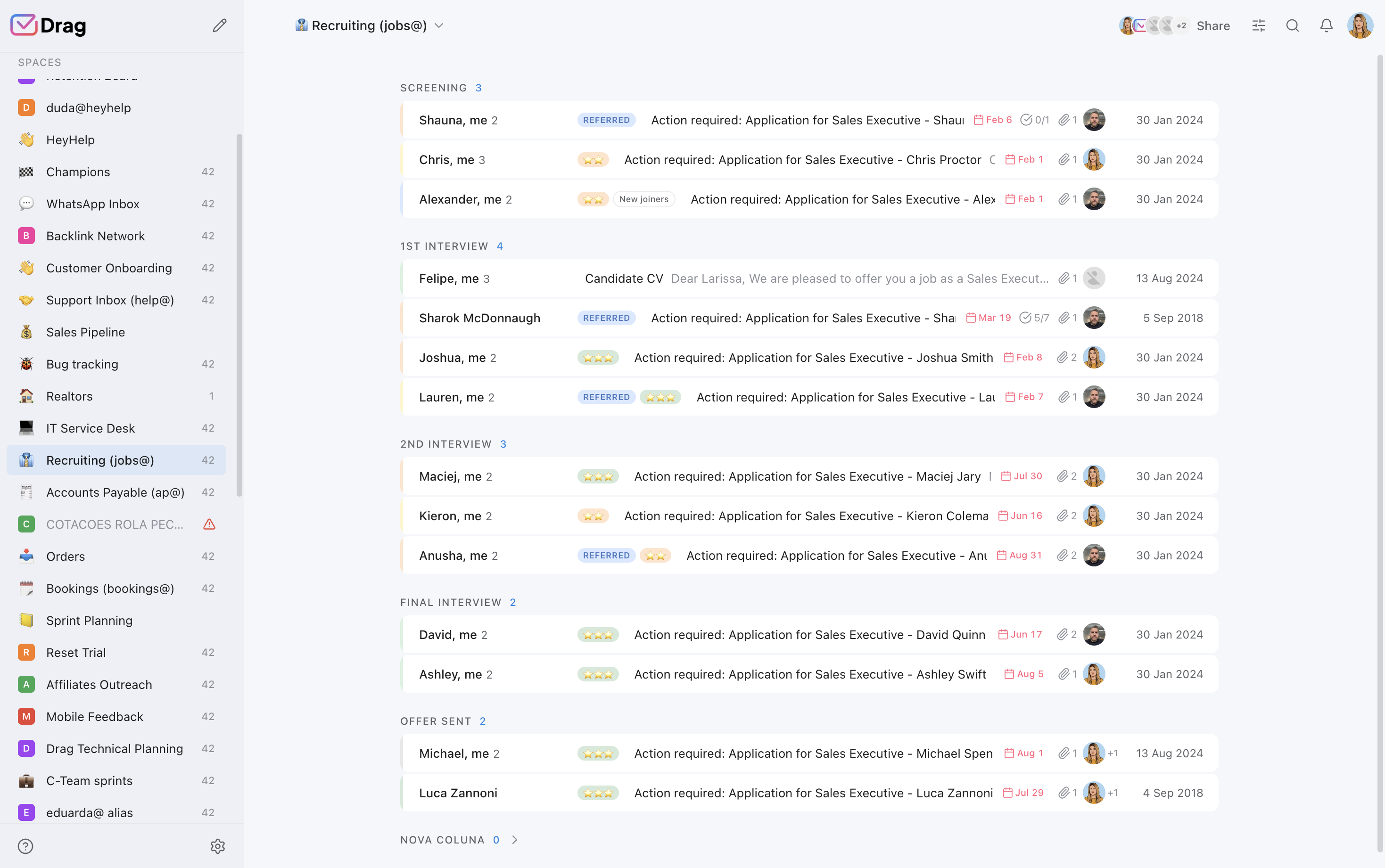
The web app gives you the same boards in a full-screen app at app.dragapp.com, with no Gmail required. It also adds a few things you won't find in the extension:
- The Stream view, in addition to Kanban, List and Preview
- My Work, a personal view of everything assigned to you across boards
- Dark mode (set it under Settings → Preferences → Theme)
- Keyboard shortcuts for common actions
To get started, see How do I use the Drag web app?
The desktop app
The desktop app is the web app in its own window on macOS or Windows, so it has the same features (including the web-only ones above). It updates itself quietly in the background, so you're always on the latest version. See How do I install the Drag desktop app?
The mobile app
The mobile app keeps you connected to your boards and cards when you're away from your computer. See Does Drag have a mobile app?
Varley, the AI inside Drag
Varley works in the Chrome extension, the web app and the desktop app. In Gmail, click the Varley icon next to the Drag logo. In the web and desktop apps, click the round Varley button at the bottom right. Varley isn't available in the mobile app. See What is Varley?
For developers and AI tools
Beyond the apps above, you can connect Drag to your own systems and to AI assistants:
- MCP (Model Context Protocol): connect Drag to AI tools like Claude, ChatGPT or Cursor. With the Drag MCP server, your assistant can read email, search threads, manage boards and pull reports from your Drag account. It uses your Drag API key (in the web app, go to Settings → Integrations).
- API: build your own integrations on top of Drag. See Does Drag have an API?