Yes. You can start a new conversation from any board and send it as a shared inbox address (such as support@), so the new email lands on the board as a card. This article shows how in the Chrome extension and the web app, which arrange it a little differently.
Available on: Chrome extension · Web app · Desktop app
Note: Composing as a shared inbox is available on the Plus and Pro plans.
Before you start
To send as a shared inbox (or as another teammate), that address first has to grant you reply-as permission.
In the Chrome extension
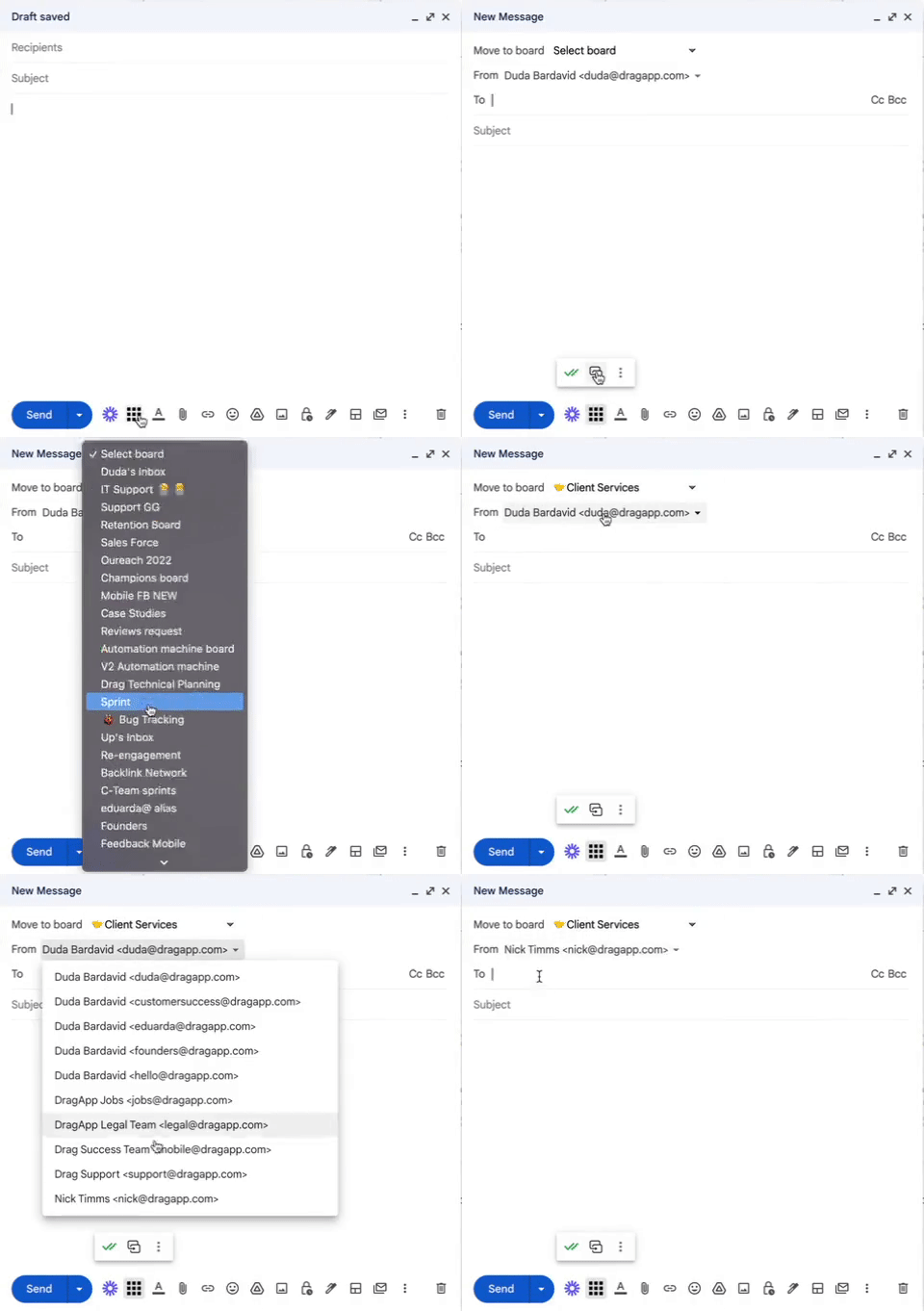
- Open a new Gmail compose box.
- Click the compose as button on the bottom toolbar.
- A move to board dropdown loads above the From field. Choose the board to send the conversation to.
- In the From field, pick the address to send from. It includes every address that granted you reply-as permission, including the shared inbox or Google Group.
Fill in To, Subject and the body as usual, then click Send.
In the web app
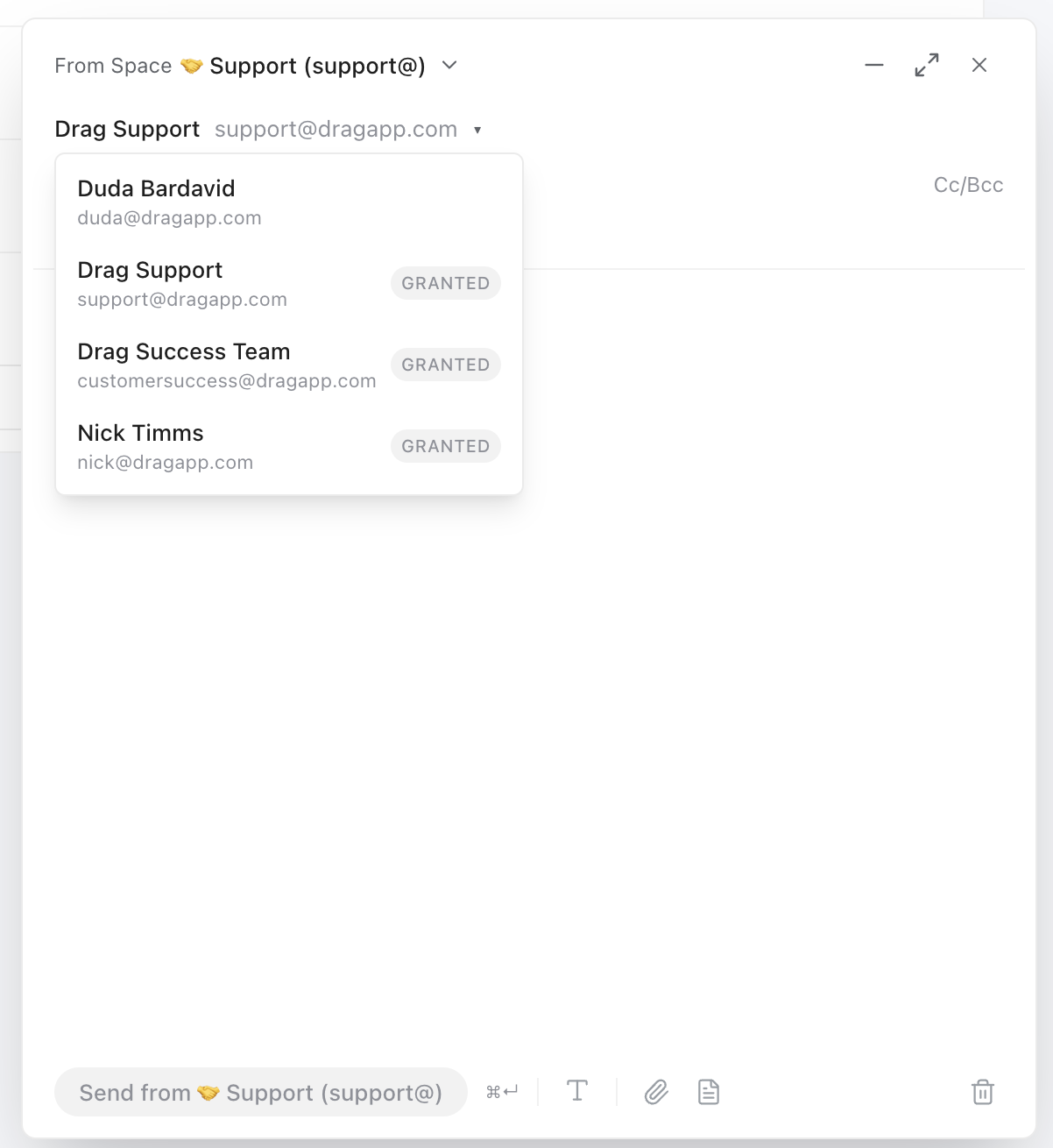
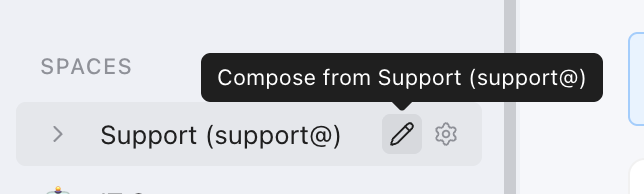
Use the compose button next to the board title o the left side panel to start from that board.
- In the compose box, use the board picker to choose which board the conversation goes to.
- In the From row, pick the sender. The list is built for the board you chose, and includes your address plus any shared inbox, Google Group or teammate address you have permission to send as.
Fill in To, Subject and the body, then click Send.
Either way, the new email is sent from the address you chose and appears as a new card on the board you picked.
Reply as a shared inbox instead
To reply to an existing email as a shared inbox, see How to reply to emails from a shared email address such as support@?
The desktop app works the same way as the web app, with silent auto-updates.
Tip: Varley can write it for you: “Email priya@example.com to confirm Thursday's call”. It proposes the email and sends only when you approve. See How do I draft and send replies with Varley?