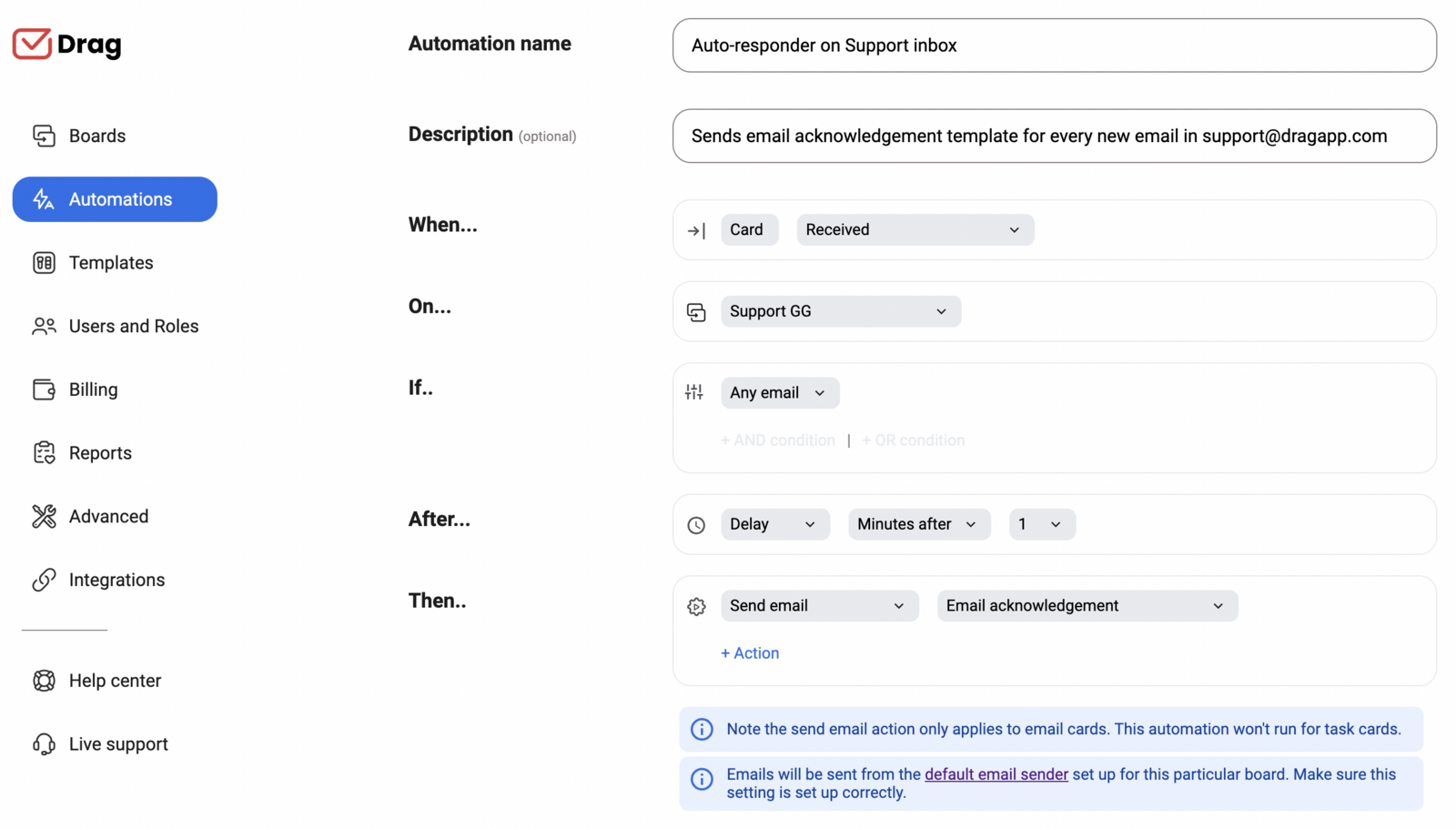
An auto-responder sends an automatic reply to emails on a shared board. It is an automation that uses the Send email action, so you can set the trigger, criteria and delay however you like.
Available on: Chrome extension · Web app · Desktop app
Note: The Send email action is available on the Plus and Pro plans.
Create an auto-responder
- Create the email template you want to send.
Open Automations (from the dashboard in the extension, or the sidebar in the web app).
Click Create an automation.
- Give it a name and description.
- In When, select card received.
- In On, choose the board.
- In If, select any email to reply to everything on the board, or set a sender, recipient or subject to limit it.
- In After, choose instant or a delay.
- In Then, select send email and pick the template.
- Click Create.
Note: Auto-responder emails are sent from the board's default sender, so make sure that is set up. Auto-responders do not run on merged cards.
Turn an auto-responder on or off
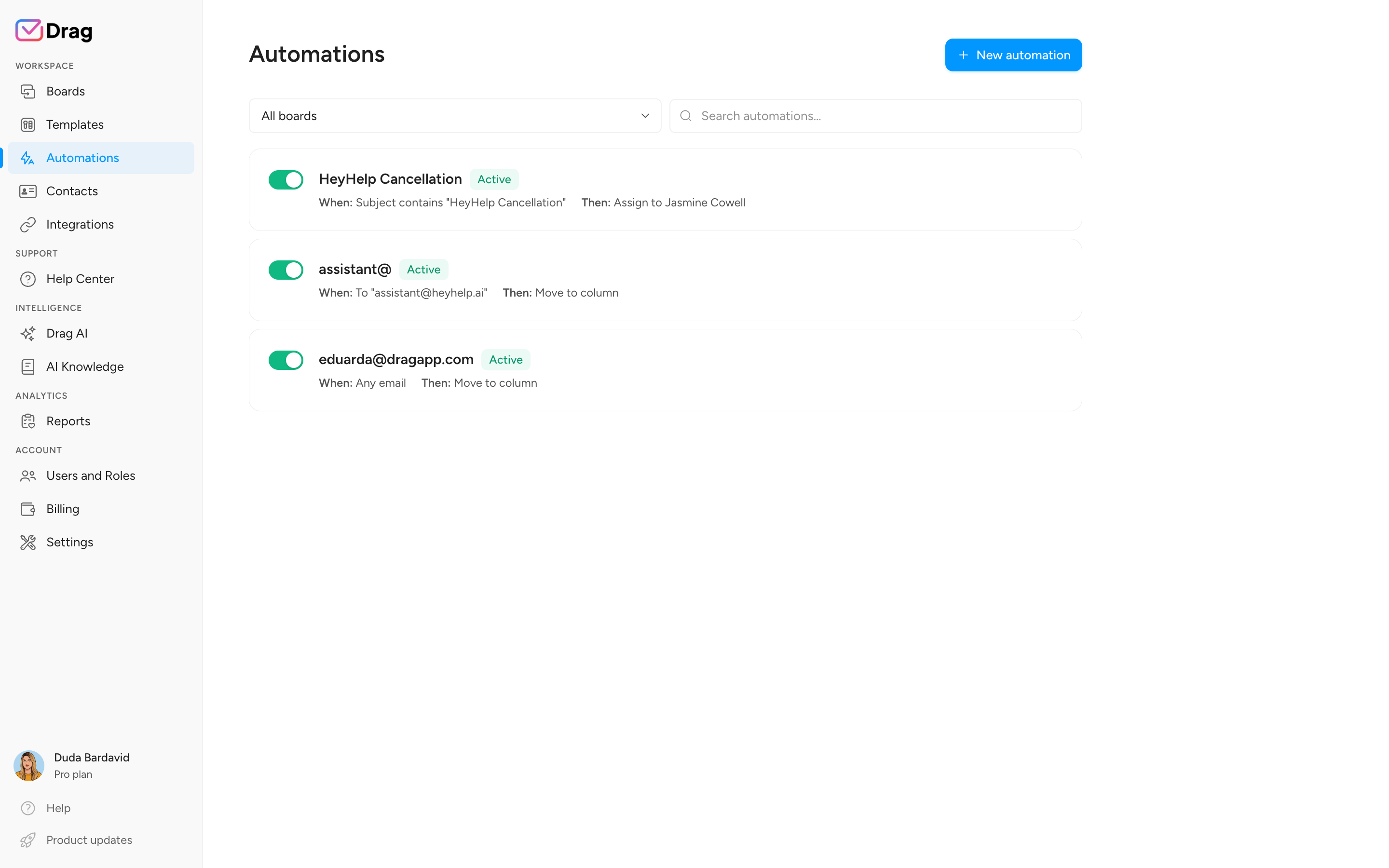
To pause an auto-responder without deleting it, for example when you are out of office, use the toggle next to its name in the automations list.

The desktop app works the same way as the web app, with silent auto-updates.