Before you create your first WhatsApp shared inbox in Drag, Meta requires a few things to be in place. Drag shows these prerequisites when you start creating a WhatsApp board. This article explains each one.
Available on: Chrome extension · Web app · Desktop app
1. Facebook Business account
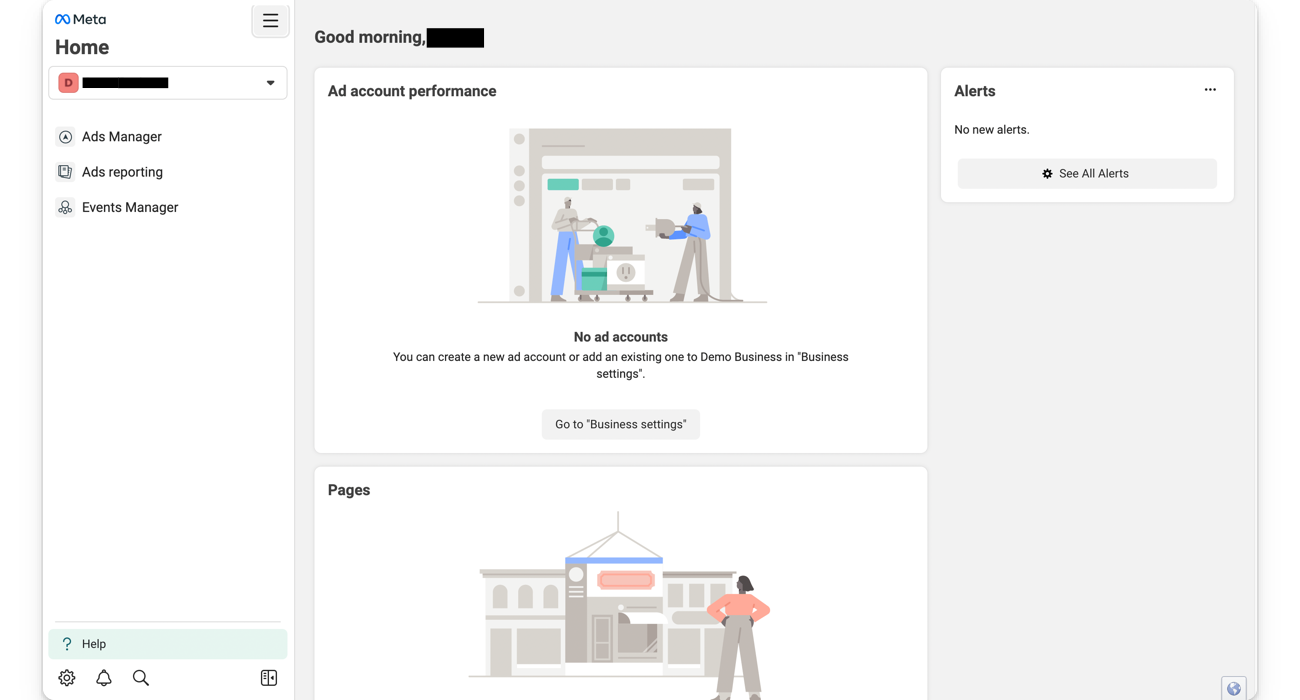
You need a Facebook Business account with access to Facebook Business Manager.
If you do not have one, go to business.facebook.com and click Create an account. Once it is created, you will have access to a Business dashboard.
2. A suitable phone number
The phone number you connect to Drag must meet Meta's requirements below. Note that the WhatsApp Business API does not include voice call functionality.
It cannot be linked to a personal WhatsApp account
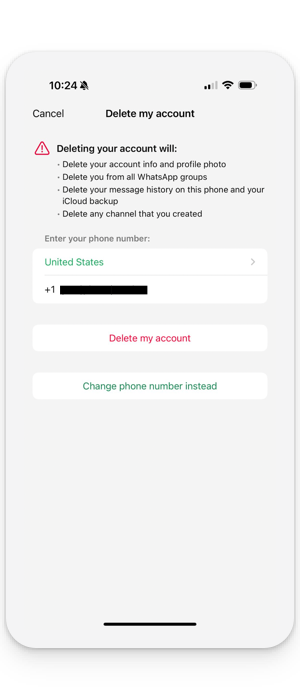
If your number is already on a personal WhatsApp account, delete that account first:
- Open WhatsApp on your device.
- Go to Settings, then Account, then Delete my account.
- Follow the prompts to delete the account.
It cannot be linked to a business WhatsApp account or another provider
Meta allows a number to be connected through the WhatsApp Business API to only one provider at a time. So the number you connect to Drag cannot also be linked to the WhatsApp Business app or another third-party tool.
Note: A number can be connected to either the Drag WhatsApp shared inbox or the WhatsApp Business app, not both. If you migrate your number to Drag, you will no longer be able to use it in the WhatsApp Business app.
If your number is linked to the WhatsApp Business app, back up your chats first (Android and iOS guides), then open the WhatsApp Business app, go to Settings, then Account, then Delete my account, and follow the steps.
If your number is linked to another third-party tool, remove that tool's access and then delete the number. First, disconnect the third-party app:
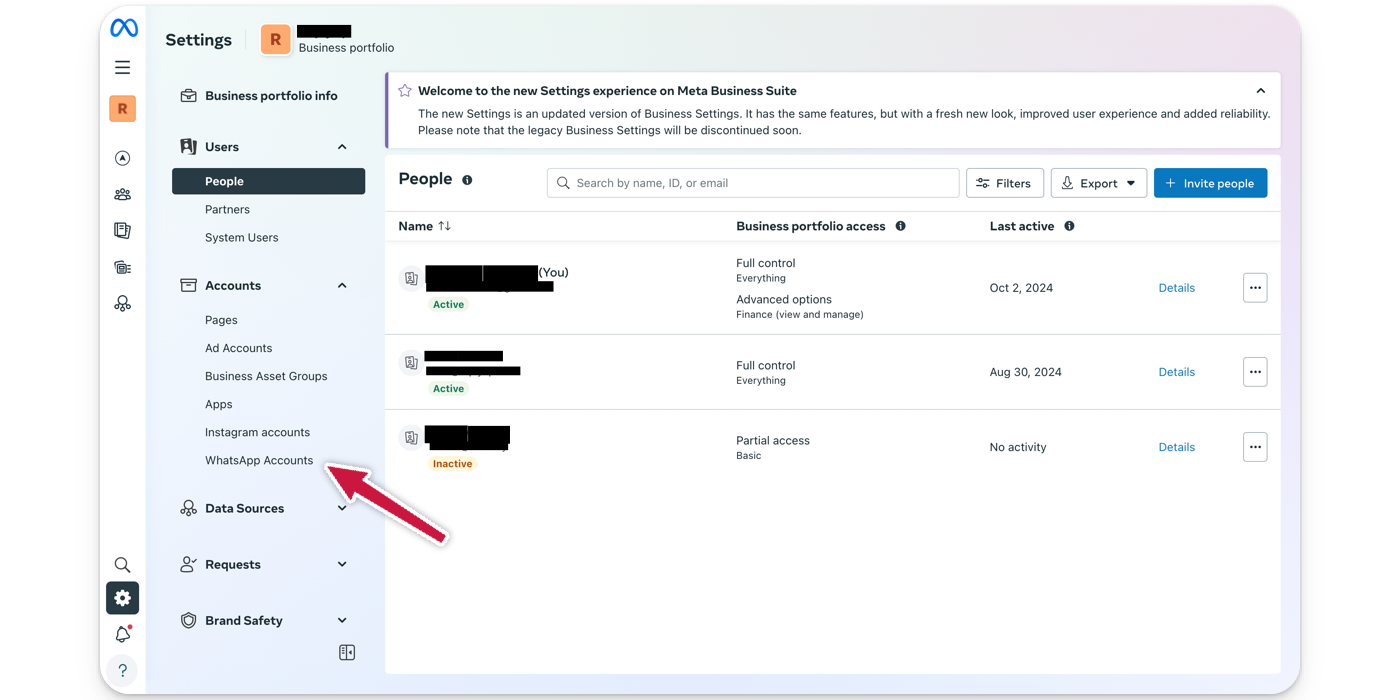
Go to your Facebook Business account and click Settings, then WhatsApp accounts.
Open the Partners tab and select Manage.
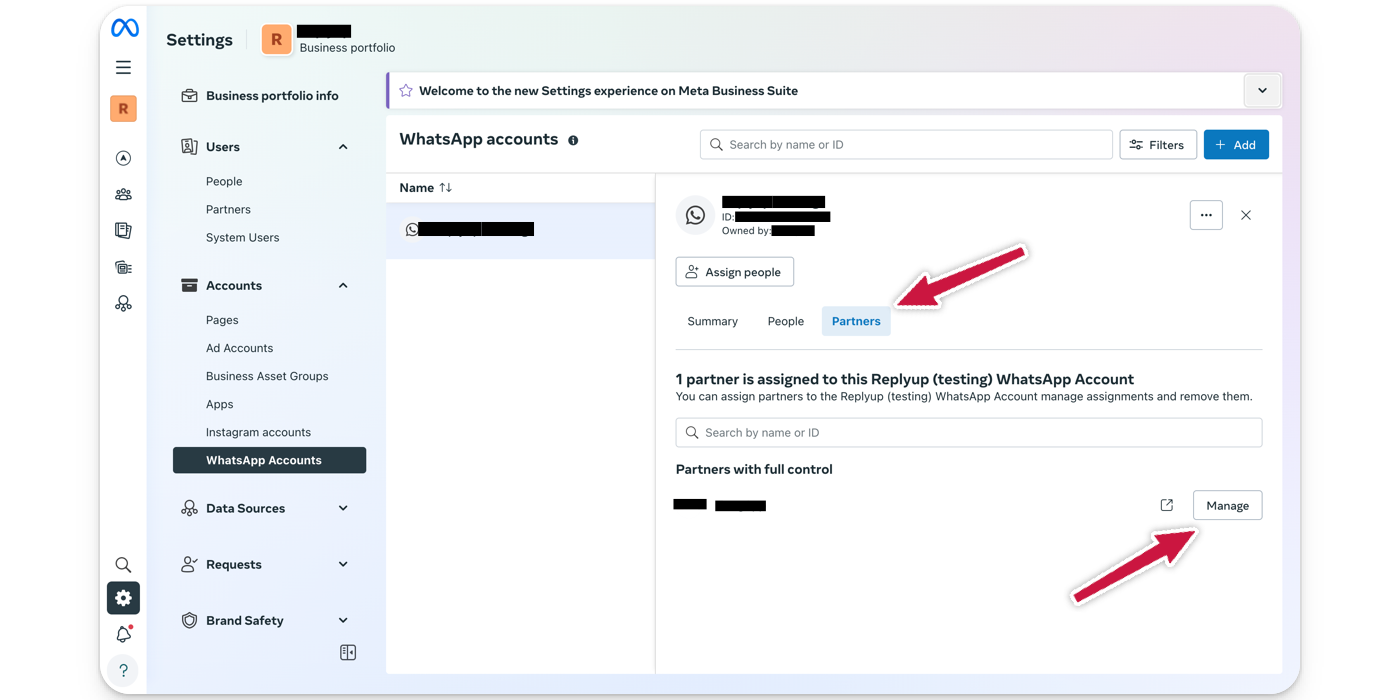
Select Remove access.
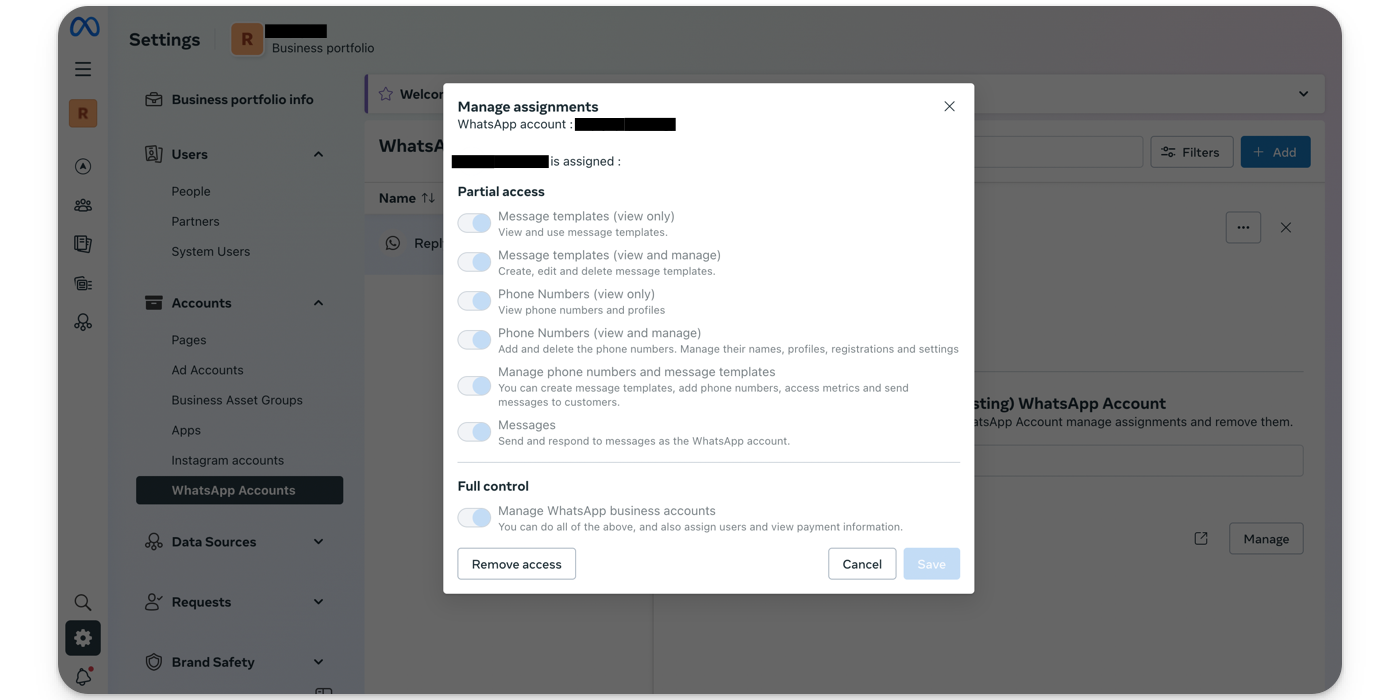
Then delete the number: request a backup of your chats from your current provider if you need one, then go to WhatsApp Manager, then Phone numbers, and click the bin icon next to the number.
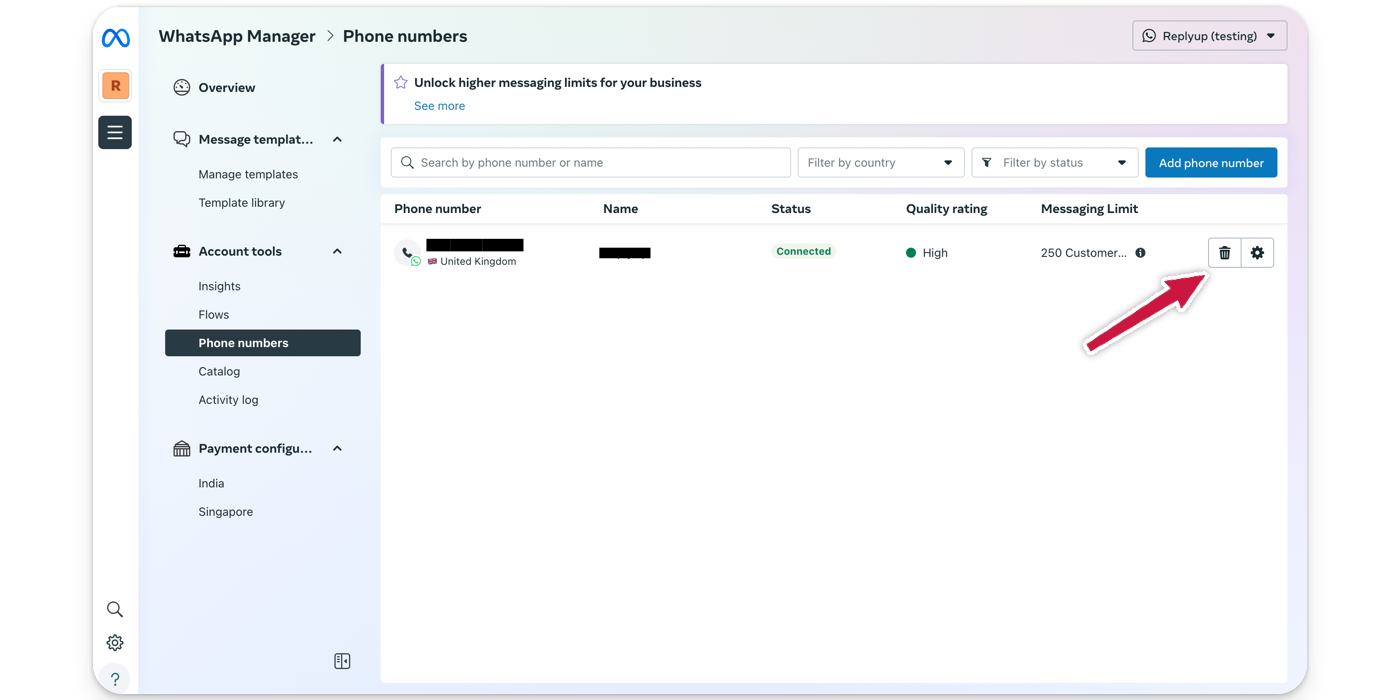
3. Facebook Developer account
Meta requires a Facebook Developer account to grant Drag access to the WhatsApp Business API. If you do not have one, create a Developer account here.