There are several ways to move cards between Drag boards. Pick whichever fits what you are doing.
Available on: Chrome extension · Web app · Desktop app
Drag and drop
Drag a card from one board to another. By default it lands in the first column of the destination board.
In both the Chrome extension and the web app, you can also drag from a board into a Gmail label, and vice-versa.
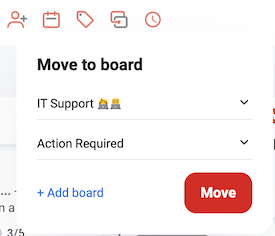
Send to board
Move one or many cards at once:
- Select the cards you want to move.
- Click Send to board (this is the Move to button on the card view top bar).
- Choose the destination board.
- Choose the column within that board.
Click Move.
Other ways to move a card (web app)
In the web app you can move a card without dragging it:
- Right-click any card and choose Move to, then pick the destination board and column. This works from every board layout: Kanban, List, Stream and Preview.
- With one or more cards selected, press V to open the move picker.
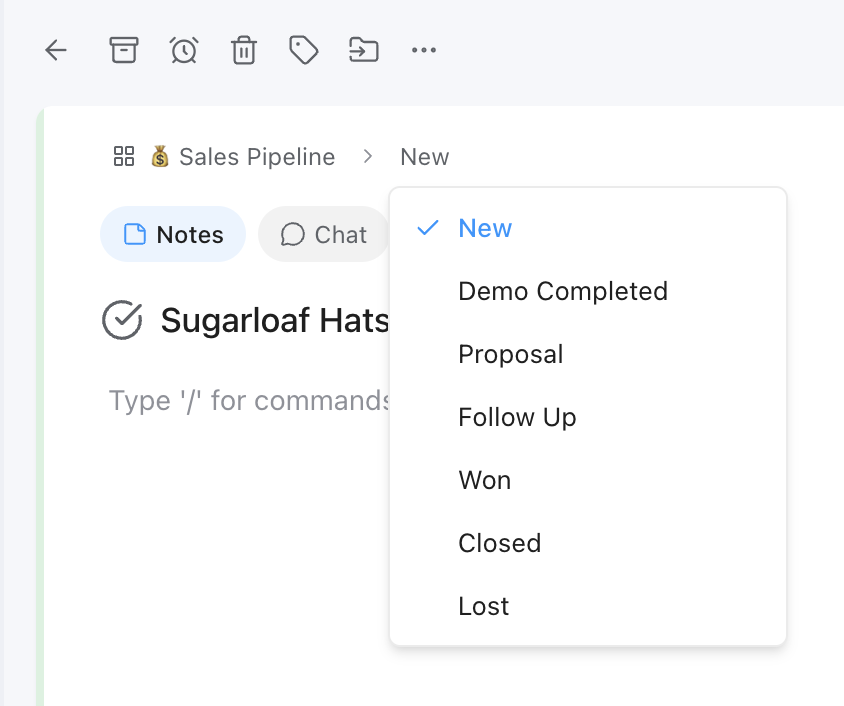
- Open the card and use the breadcrumb at the top (Board › Column): click the board name to move the card to another board, or the column name to move it to another column on the same board.
Move cards automatically with automations
If the cards you move follow a pattern, create an automation to move them for you. An automation applies to future cards that match the criteria, not to cards already on the board.
Add incoming email
Shared Inbox and Google Groups boards load email in real time from a connected account. To connect an empty board, see add a Shared Inbox or add a Google Group.
The desktop app works the same way as the web app, with silent auto-updates.
Tip: You can also ask Varley: “Move this to Waiting on customer”, or move up to 50 cards in one request. See How do I move, assign, tag or archive many cards at once?