Service Level Agreements (SLAs) help you keep response times on track. Drag does not have a separate SLA feature; instead, you build SLAs from pieces you already have: tags, delay-based automations, notifications and reports. This article shows the pattern.
Available on: Chrome extension · Web app · Desktop app
1. Create tags (and boards)
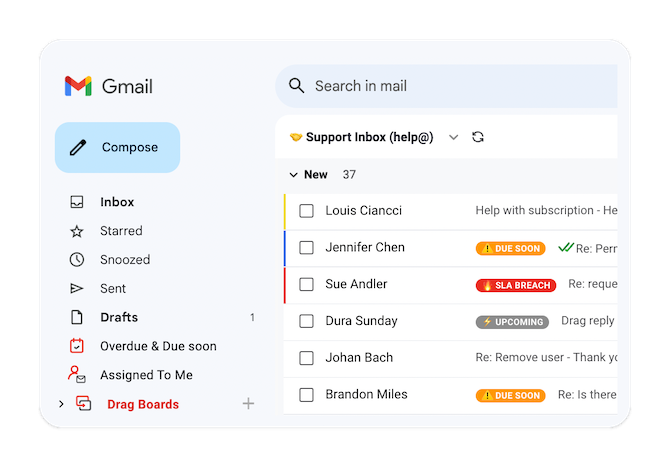
Use tags to make SLA status visible, for example:
- ⚡ Upcoming for conversations with an SLA.
- ⚠️ Due soon for conversations nearing their deadline.
- 🔥 SLA breach for overdue conversations.
If you prefer, keep SLA conversations on separate boards instead of tags. Then use automations to apply the tags or move the cards according to your policy.
2. Create delay-based automations
Build automations with a delay, plus actions like Apply tag, Move to, Send notification or Assign to. For example, to reply to a customer within 2 business hours:
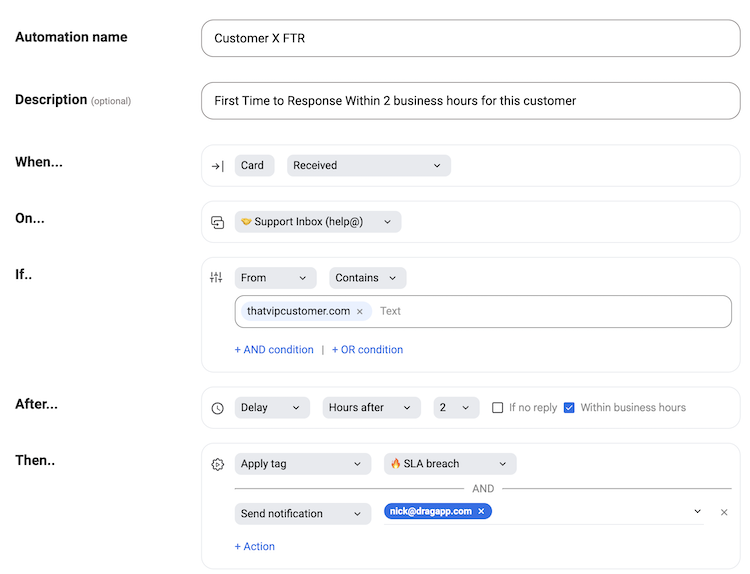
- In When, select Card received.
- In On, choose the board.
- In If, set the customer detail (for example, sender domain contains avipcustomer.com).
- In After, set the reply-time goal in minutes, hours or days. Use if no reply, and within business hours to count only working hours.
- In Then, select Apply tag (the SLA tag), Send notification (the people to alert), and optionally Move to.
Important: A rule with the Card received trigger only applies to new emails, not to replies on existing threads. Make sure the board's business hours are set before you create the rule.
SLA reminders
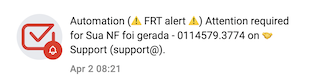
Use Send notification to alert the assignee or a manager before or when an SLA is breached. In the 2-hour example, you could send a reminder after 1 hour.
Reminders from your own actions
You can also start time-based rules from actions you take, such as applying a tag or assigning a card. Set the matching When trigger on the automation.
Track SLA performance in reports
Monitor SLAs with tag reports: filter by board and by the SLA tag to see how you are doing.
The desktop app works the same way as the web app, with silent auto-updates.