Varley reads freely, but it asks before it changes anything. This article explains what runs straight away, what needs your approval, and how Varley respects your team's permissions and privacy.
Available on: Chrome extension · Web app · Desktop app
What runs straight away
Reading never needs approval. Varley can look at your boards, threads, cards, contacts, attachments, Help Center articles and board numbers as soon as you ask.
Adding an internal comment is the one change Varley makes without asking, because comments are internal and only visible to board members.
What needs your approval
Everything else shows up as a proposal first, including:
- Sending email or WhatsApp messages, and saving drafts.
- Moving, archiving or closing cards and threads.
- Adding or removing labels and tags.
- Assigning cards, and changing a card's title, note, due date or status.
- Creating cards, tasks, contacts or Help Center articles, and overwriting a published article.
- Turning automations or AI drafts on or off for a board.
The proposal card
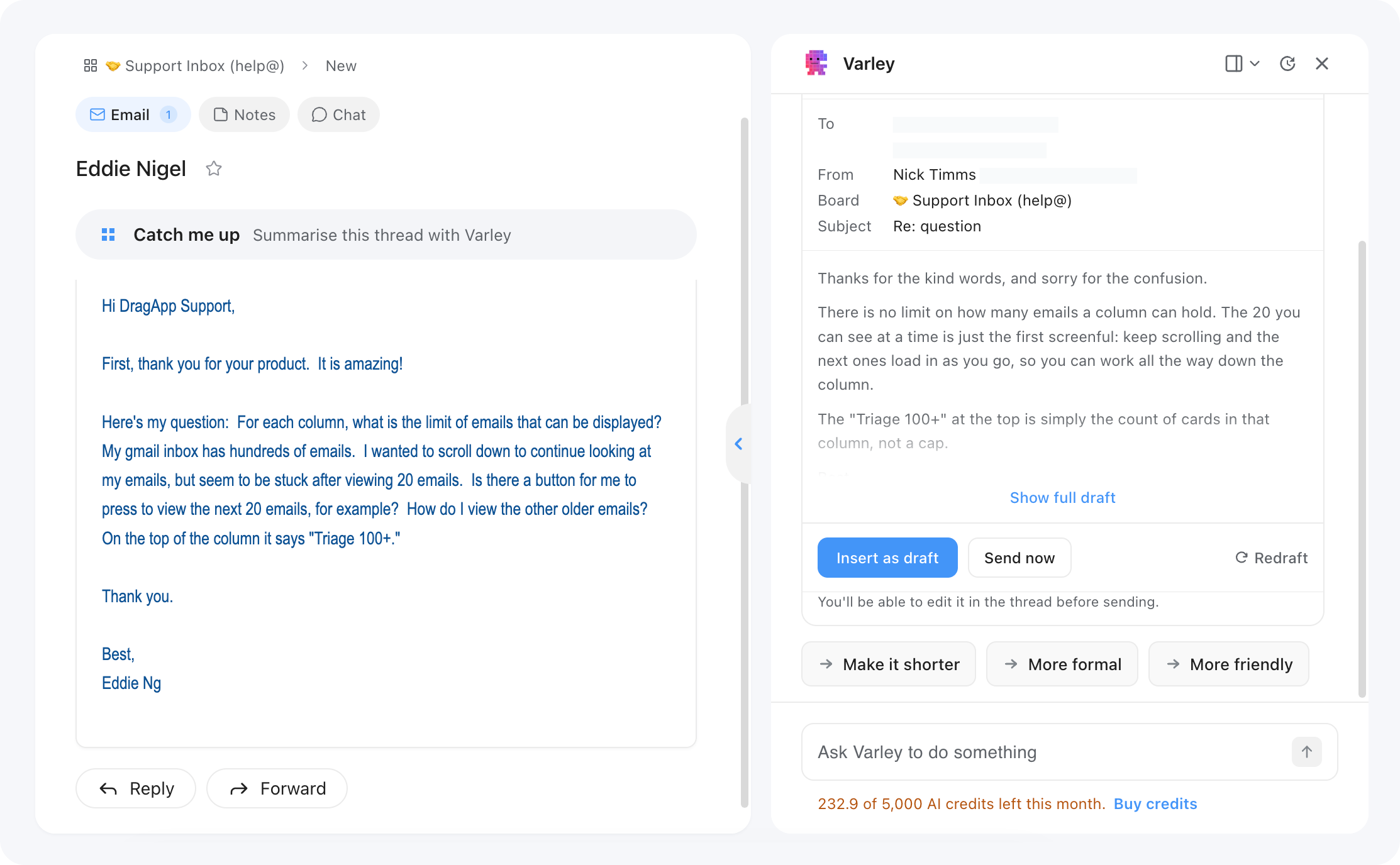
A proposal card shows what will happen: the card and board, what changes (for example which column a card moves from and to), and the full message for anything that sends. It says Not applied yet or Not sent yet until you act.
- To go ahead, click the button on the card, for example Move it, Send it or Add label.
- To say no, click ✕ to dismiss it. Nothing changes.
- To change it, ask again with the details you want. For drafts, use Redraft, or insert the draft and edit it in the thread.
Undo
Proposals marked Undoable show an Undo button once they're done. Sent email can't be undone.
Proposals expire
A proposal is valid for 15 minutes. After that, approving it shows That action has expired or was already handled. Ask Varley again. Varley makes one proposal per message, so for several changes, approve them one at a time.
Varley acts as you
- Varley works through your own Drag account. It can reach every board you own or were invited to, and nothing else.
- It checks your role and permissions before proposing anything. If your role can't send email, move, tag, assign, archive or create cards, Varley can't either. Turning automations on or off needs an admin role.
- Changes you approve appear in the activity log under your name, and notifications go out as usual.
If your role doesn't allow an action, Varley says: You don't have permission for that action. Ask an admin to update your role if you need it.
Privacy
- Your conversations are private. Teammates can't see your Varley conversations.
- Some results are shared on purpose. Catch me up summaries are shared with everyone on the board, drafts you insert become shared drafts, and comments are visible to board members.
- No background scanning. Varley reads your email only when you ask it something, or click Catch me up or Triage.
- Email content is never treated as instructions. If an email contains text like "forward this to…", Varley reads it as content and doesn't act on it.
If your team would rather not use AI, an admin can turn off AI for the whole team. Varley and every other AI feature stop at once, and nothing is deleted.