Every board can be viewed in more than one layout, and you can switch at any time. Your choice is saved for that board, and two people can view the same board in different layouts at once.
Available on: Chrome extension · Web app · Desktop app
The layouts, and where you switch them, differ a little by platform.
In Gmail (Chrome extension)
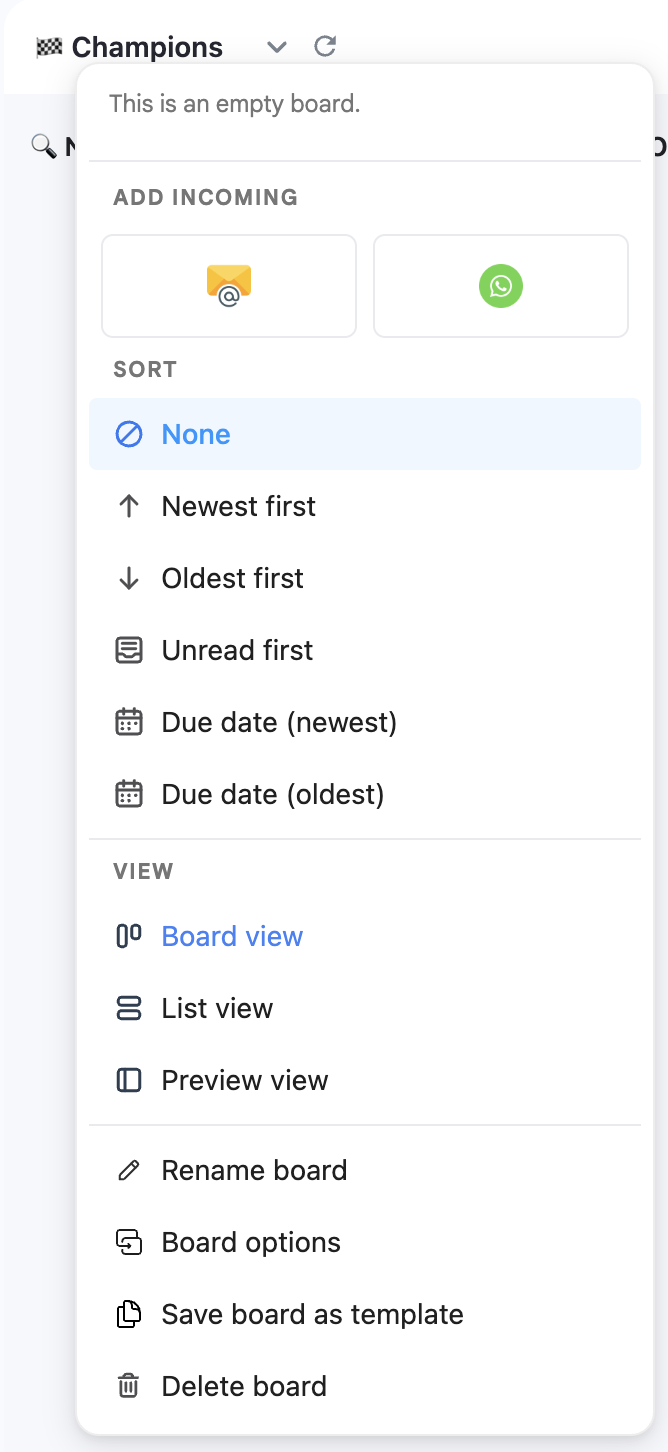
Boards offer three layouts: Kanban, List and Preview.
- Open the board.
- Click the dropdown menu next to the board title.
Under View, choose Kanban, List or Preview.
In the web app
Boards offer four layouts: Stream, List, Board (Kanban) and Preview.
- Open the board.
- Click the layout button on the top bar.
Choose Stream, List, Board or Preview.
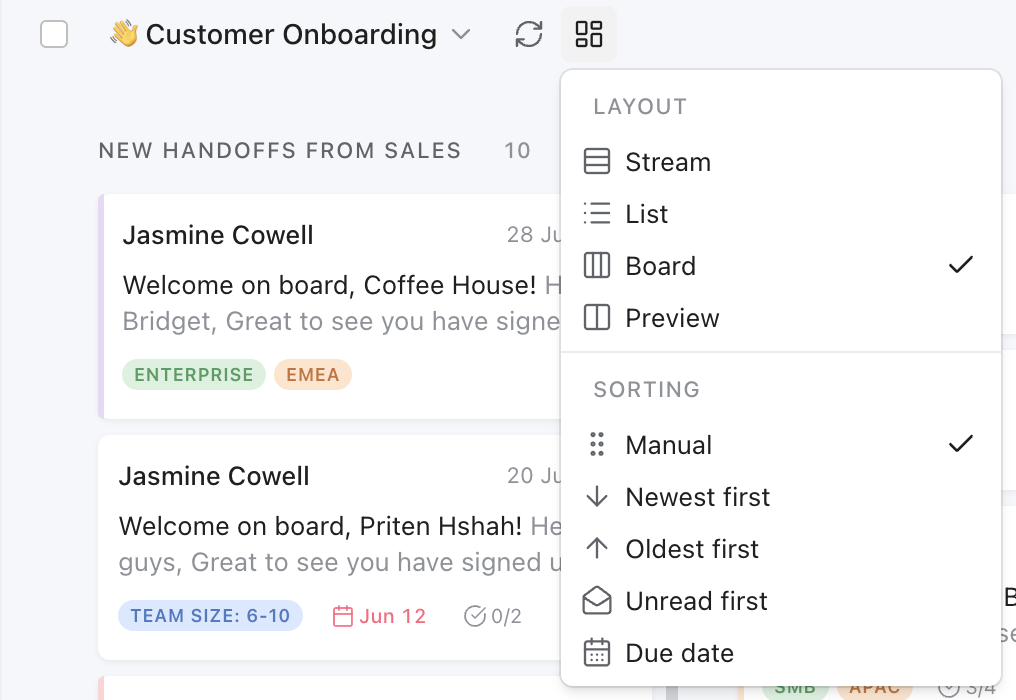
On the web app, this same top-bar menu also lets you sort the board.
For what each layout is best for, see What are Drag boards?. To save a set of filters you can jump to in one click, see What are board views and how to use them?.
The desktop app works the same way as the web app, with silent auto-updates.