You decide the order cards appear in within a column. There are two ways to do it: drag cards by hand, or use the Sort menu.
Available on: Chrome extension · Web app · Desktop app
Drag cards into a custom order
Drag cards up and down within a column to arrange them exactly how you want.
Sort with the Sort menu
For structured ordering, use the Sort menu. The options, and where you find them, differ a little by platform.
In Gmail (Chrome extension)
Click the dropdown menu next to the board title and choose a sort option:
- None (manual)
- Newest first
- Oldest first
- Unread first
- Due date (newest)
- Due date (oldest)
In the web app
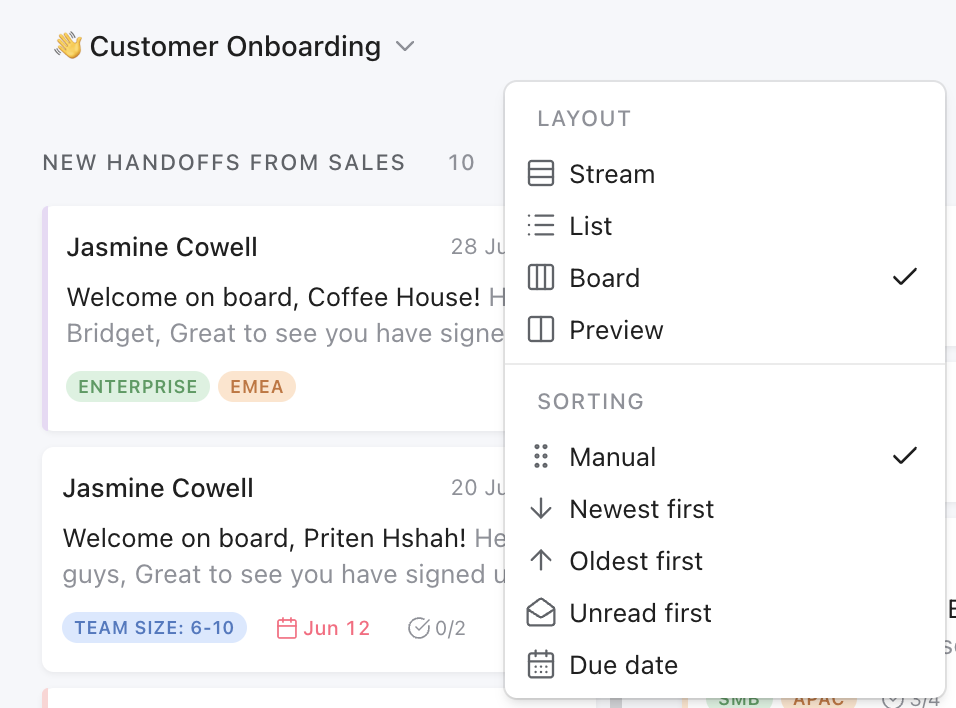
Sorting lives in the same top-bar menu as the layout. Click the layout button on the top bar and pick an option under Sorting:
- Manual
- Newest first
- Oldest first
- Unread first
- Due date
Note: Choosing None in the extension, or Manual in the web app, returns your cards to the order they were in before you sorted them.
How sorting treats email cards and task cards
Sorting handles email cards and task cards a little differently:
- Newest first and Oldest first: emails are ordered by the date of the latest message in the thread; tasks are ordered by their creation date.
- Unread first: emails are ordered by their read or unread status for you on that board (on a shared board, the same email can be read for one person and unread for another). Tasks always count as read.
- Due date: cards with a due date are ordered by that date, and cards without a due date are treated as older than the oldest due date (the same applies to tasks). The extension lets you choose newest or oldest due date first; the web app offers a single Due date option.
Note: When you re-sort a column, the new order applies only to the cards already in it. New cards you drag in, or emails that arrive later, are not re-sorted automatically.
The desktop app works the same way as the web app, with silent auto-updates.