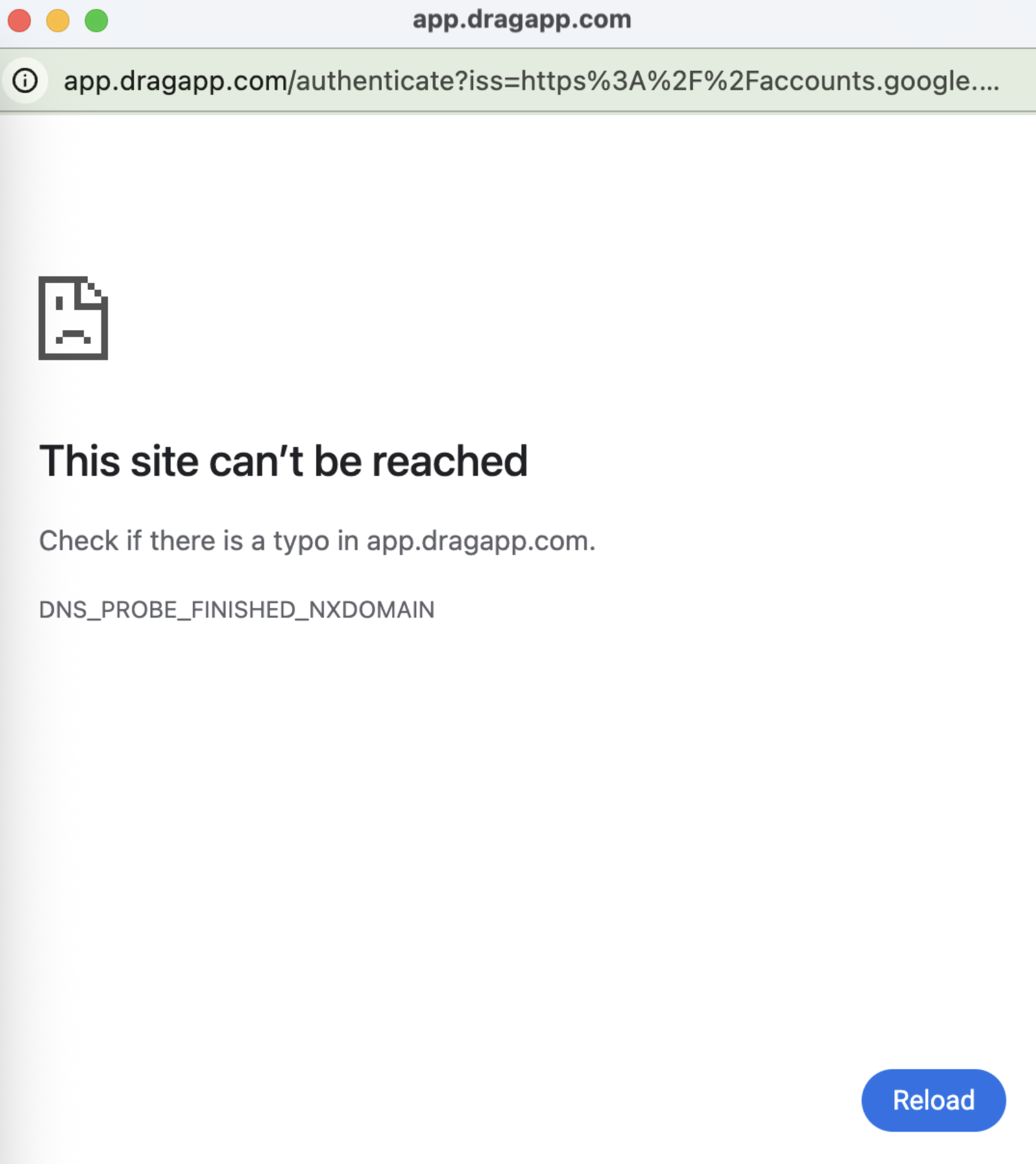
If you see "This site can't be reached" with the description DNS_PROBE_FINISHED_NXDOMAIN when you try to log in to Drag, your browser could not resolve the Drag address. That points to DNS on your side of the connection rather than to a problem with Drag itself.
Available on: Chrome extension · Web app · Desktop app
What the error means
DNS_PROBE_FINISHED_NXDOMAIN means your computer or network cannot resolve app.dragapp.com, the address Drag needs to reach to load your boards and emails. The lookup fails before any request reaches our servers, so the cause is almost always your local network, your DNS settings, or software sitting between you and the internet.
Note: This error comes from your browser, not from Drag. Nothing on your boards is affected, and your emails load normally again as soon as the connection is restored.
Work through the checks below in order.
1. Try a different network
Switch to your phone's hotspot or another Wi-Fi network, then reload Gmail. If Drag loads there, the problem is the network you were on, and the sections below narrow down what on that network is blocking it.
2. Restart Chrome
Fully quit Chrome, not just the window, then reopen it and load Gmail again. This clears a stale DNS entry held by the browser.
3. Turn off VPNs, proxies, and web filters
A VPN, proxy, ad blocker, or antivirus web filter can block dragapp.com before the request leaves your computer. Turn them off one at a time and reload Gmail after each one, so you can tell which is responsible.
4. Ask your IT team to allowlist dragapp.com
On a work network, a firewall may be blocking dragapp.com for the whole organization. To confirm, check whether colleagues on the same network can log in to Drag. If they see the same error, ask your IT team to allowlist dragapp.com, which resolves it.
If Drag reaches the site but still does not load correctly, see Drag doesn't load or is broken. If none of these steps help, contact us at support@dragapp.com and let us know which networks you tried and whether colleagues are affected.