Your Help Center portal is the public website where readers find your published articles. This article covers making the portal live, branding it, setting its web address, and its optional features.
Available on: Web app · Desktop app · Chrome extension
You can manage your portal from the web app, the desktop app, or the Chrome extension. Open the Help Center from your Drag dashboard on any of them.
How publishing works
There is no single button to publish the whole portal. Your Help Center goes live once two things are true:
- You have set a subdomain (your portal's web address), covered below.
- You have published at least one article.
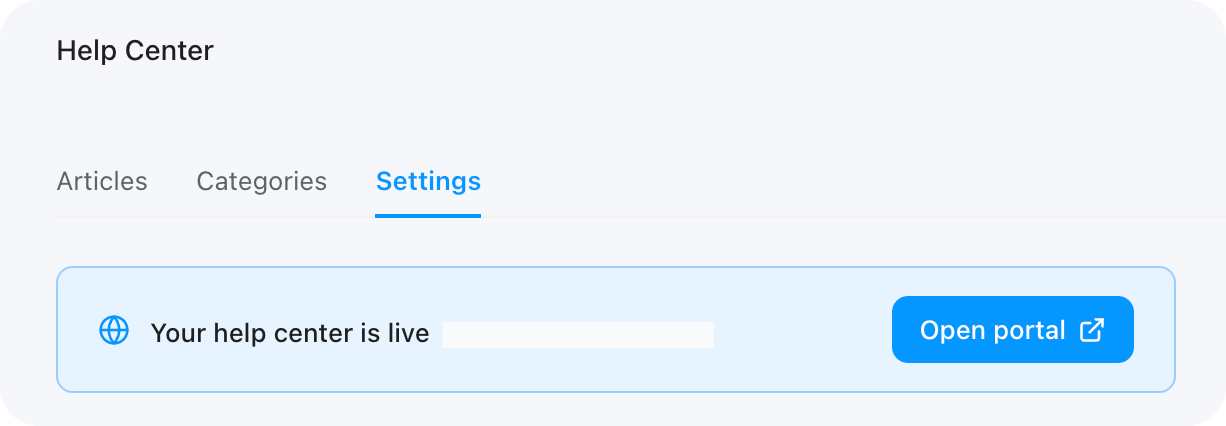
When your portal is live, the Settings tab shows a banner confirming it, with your address and an Open portal link to preview it.
Brand your portal
Open Help Center from the sidebar, then the Settings tab. The Branding card controls how your portal looks:
- Logo: the image in your portal header. PNG, JPG, or SVG, around 200x60px.
- Logo icon: the favicon shown in the browser tab. A square image, at least 32x32px.
- Help center name: the name of your portal.
- Accent color: used for links, buttons, and category pills. Pick a preset or enter a hex value.
- Welcome heading and Welcome subtitle: the title and text at the top of your portal, for example "How can we help?".
Set your web address
The Domain card controls where your portal lives:
- Subdomain: choose a name and your portal is served at that name followed by .dragapp.help. Drag checks whether the name is available as you type.
- Custom domain: serve the portal from your own domain, such as help.yourcompany.com.
Portal features
The Features card holds optional settings:
- AI-powered search: on the Plus plan and above, let readers ask questions in natural language instead of only searching keywords.
- Powered by Drag badge: shown in the footer by default. Removing it requires the Pro plan.
You can also set a Support email in the Support contact card, so readers have a way to reach you.
Note: If an admin has turned off AI for your team, AI-powered search stops answering, but the Ask AI button still shows and visitors see an upgrade message. Turn AI-powered search off here as well.
Save your changes
Click Save changes to apply your settings, or Discard to drop them. Use Open portal at any time to preview how your Help Center looks to readers.
The desktop app works the same way as the web app, with silent auto-updates.