You can attach files to a card, so your team has the documents it needs in context. For example, upload a recording from a customer to a task card so support can see what is going on. Files live in the card's Files area.
Available on: Chrome extension · Web app · Desktop app
Note: Files are available on the Plus and Pro plans. Only members of the board can see a card's files; teammates outside the board, and outside people such as the email sender, cannot. The limit is 10 MB per file.
The Files area works a little differently in the Chrome extension and the web app.
In the Chrome extension
Open the card, then open the Files tab.
Upload
Drag files onto the Files area, or click browse to pick them from your computer. Files under 10 MB upload as a copy in Drag.
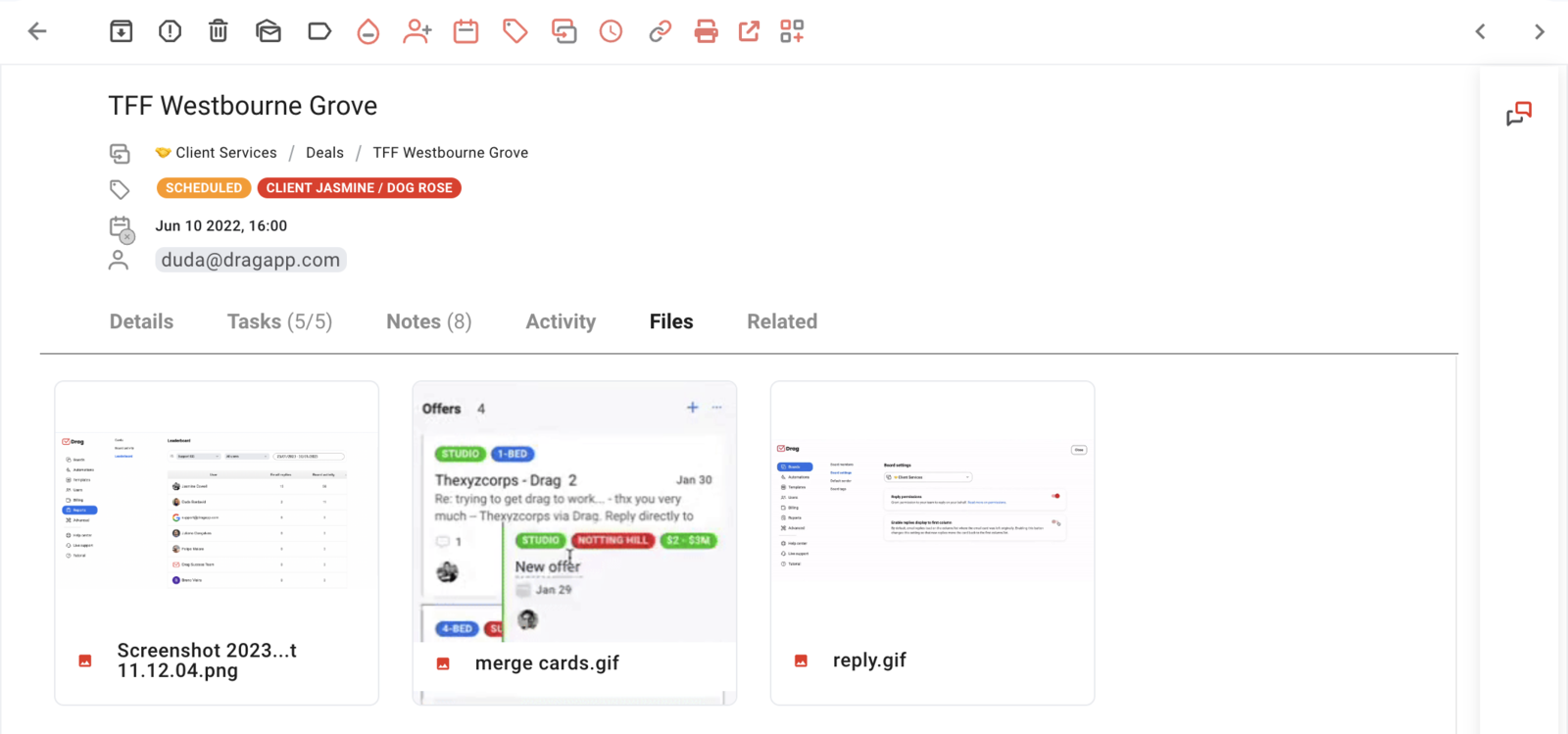
Download or delete
Click a file to preview or download it. To act on several at once, select them with the checkbox at each file's top left, then use the button on the top bar:
- Download downloads the selected files.

- Delete removes the selected files.

In the web app
In the web app, the Files area is part of the card's properties panel, and it shows two kinds of files.
Email attachments and uploaded files
- Email attachments are files that arrived on the email. Click one to open it in the attachment viewer, which previews images and PDFs.
- Uploaded files are files your team adds to the card.
Upload
Drop files onto the Files area, or click to browse. You'll see a Drop to upload prompt while dragging, and an Uploading... state while the file saves. The limit is 10 MB per file.
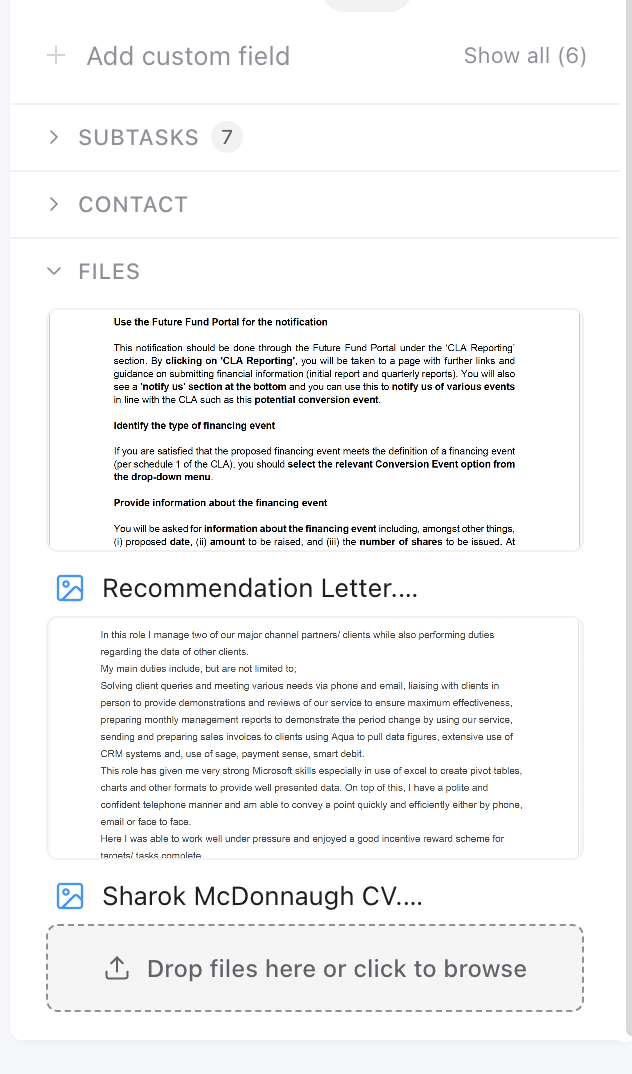
Manage a file
Hover an uploaded file to reveal its actions:
- Rename changes the file's name.
- Download saves it to your computer.
- Delete removes it from the card.
The desktop app works the same way as the web app, with silent auto-updates.