You manage the people on your Drag subscription from Users and Roles: add teammates, transfer a seat from one person to another, or remove someone. Adding and switching users are admin actions (Account Admin or Super Admin).
Available on: Chrome extension · Web app · Desktop app
Open Users and Roles:
- In the Chrome extension, open it from your Drag dashboard.
- In the web app, open Settings from the avatar menu (top right), then the Users & Roles tab.
Add a user
Adding a user adds a paid seat to your subscription on your team's current plan. All users in a subscription are on the same plan, so you cannot put some users on a different plan from the rest of the team.
- In Users and Roles, go to Team Members. You will see your current users and your plan.
- Click Add member.
- Choose how many seats you want with the + / - controls.
- Enter the email addresses of the people to add (or upload a list from a CSV file).
- Optionally switch plans, change your billing frequency between Monthly and Yearly, or apply a coupon code.
- Confirm the purchase.
Switch a user (transfer a seat)
When your team changes, you can transfer a seat from one person to another. The new user inherits the boards, roles, and permissions of the person they replace.
- In Users and Roles, go to Team Members.
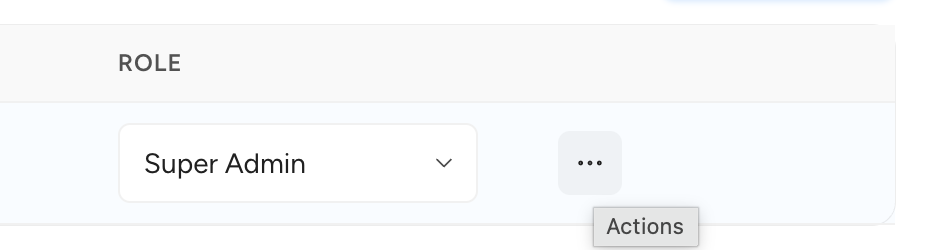
- Open the actions button next to the user you want to replace and choose Switch user.
- Enter the new user's email address and confirm.
Remove a user
To remove a user from your subscription, contact our team by live chat or at support@dragapp.com with the email addresses to remove, and we will process it for you.
Note: On Plus and Pro, each seat adds AI credits to your team's shared monthly pool. See How do AI credits work? and the AI pricing guide.